# How to Use Google Drive, Dropbox and OneDrive in ComfortFiles
ComfortFiles is a Windows Explorer-style file manager for macOS.
Every cloud drive whose Mac app you have installed — **Google Drive**, **Dropbox**, **OneDrive** or **Box** — sits in the sidebar beside iCloud Drive, under its own name. There is nothing to connect: ComfortFiles shows the files the drive's own app keeps on your Mac, and that app does the syncing, exactly as it does for Finder.
## Where they appear
- In **Quick Access**, next to iCloud Drive. A drive you set up while ComfortFiles is open shows up at once.
- **Google Drive opens straight into My Drive** when that is all there is at its top, so there is no extra folder to click through.
- **Two accounts of the same drive** — a personal and a work Google account, say — sit under one **Google Drive** row, each named by its account.
- Inside a drive, the **address bar starts at the drive**: *Google Drive › Photos*, just as the sidebar names it.
Like any built-in row, a drive can be hidden from Quick Access and shown again — see [Quick Access](/how-to/quick-access/).
## Which files are on this Mac
A file kept **only in the cloud** carries a small cloud at the end of its name, as in Finder. In the icon view the cloud sits on a round badge at the corner of the picture. The file still shows its size, and a Google Drive file its thumbnail — without being downloaded just to draw it.
It comes down when you **open it**, or when you **select it with the [preview panel](/how-to/preview-panel/) open** — only the file you selected, never the ones around it. While it comes, a ring fills in beside its name and the preview says how far it has got. A video starts playing straight away instead of waiting for the whole file.
## Give the room back without deleting anything
Downloaded files take room on your Mac. Giving them back to the cloud frees that room and deletes nothing: the files stay in your drive and come down again the next time you open them — Finder calls it **Remove Download**.
- **One file or folder:** right-click it and choose **Remove Download**.
- **Everything a drive has downloaded:** right-click the drive's row in the sidebar and choose **Clear Downloaded Files…**. You are told how much room comes back before anything happens.
- **Across all your drives at once:** the **Cloud downloads** group in [Storage](/how-to/storage/) lists what came down from Google Drive, iCloud Drive, Dropbox and OneDrive, largest first.
A file you are looking at in the preview panel is let go first, so it goes back to the cloud with the rest rather than coming straight back down. A file another app has open — selected in a Finder window with its preview showing, or a video playing in QuickTime — cannot go back while it is open; ComfortFiles tells you which files stayed, and they go the next time once that app has let them go.
## How full is the drive
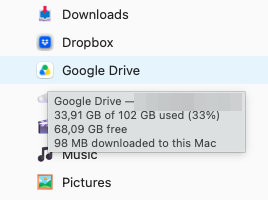
**Hover over a drive in the sidebar.** A Google Drive account shows how much of your Google storage is used and how much is free, counted the way Google counts it. Every cloud drive, Dropbox and iCloud Drive included, shows how much of it is downloaded to this Mac. iCloud does not tell other apps how full your iCloud storage is — that figure is in **System Settings ▸ your name ▸ iCloud**. While that is being counted the tooltip says *Calculating…*; it is counted afresh each time you hover, so a file you have just downloaded is included.
Disks under **My Mac** answer the same way: used, free and the percentage.
## When the drive's app is not running
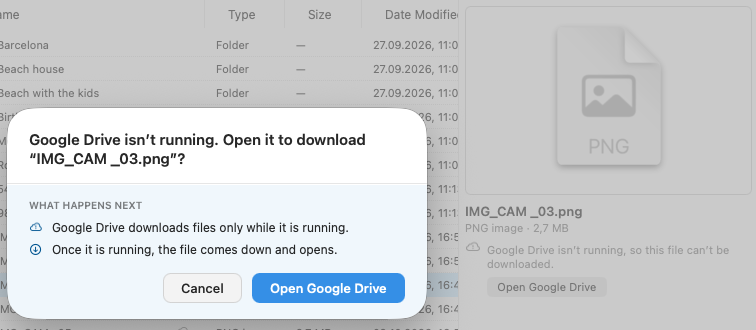
A cloud drive's files come down only while its app is running. If you have quit Google Drive — or it has not started yet — the preview panel says so under the file's name and offers **Open Google Drive**; once it is running, the file comes down and is shown. Opening such a file, or pressing the space bar on it, asks the same question first. Nothing is lost in the meantime: the file is safe in the cloud.
## Related
- [Quick Access](/how-to/quick-access/) — pin, reorder and hide the rows at the top of the sidebar.
- [Find what is taking up space](/how-to/storage/) — including what your cloud drives have downloaded.
- [The preview panel](/how-to/preview-panel/) — see a file without opening it.
## Frequently asked questions
### Does ComfortFiles work with Google Drive, Dropbox and OneDrive?
Yes. Every cloud drive whose Mac app you have installed — Google Drive, Dropbox, OneDrive or Box — appears in the sidebar under its own name, beside iCloud Drive, the way Finder lists them. There is nothing to sign in to: ComfortFiles shows the files the drive's own app keeps on your Mac, and that app does the syncing.
### How do I free up space from Google Drive on my Mac without deleting files?
Right-click the Google Drive row in the sidebar and choose Clear Downloaded Files…. Everything the drive has brought to this Mac goes back to the cloud: the room is freed, nothing is deleted, and each file comes down again when you open it. For a single file or folder, right-click it and choose Remove Download.
### What does the small cloud next to a file name mean?
That the file is kept in the cloud and not on this Mac, as in Finder. It still shows its name, size and — for Google Drive — its thumbnail. Open it, or select it with the preview panel open, and it comes down; a ring fills in while it does.
### How can I see how full my Google Drive is?
Hover over the drive in the sidebar. A Google Drive account shows how much of your Google storage is used and how much is free, counted the way Google counts it; every cloud drive, iCloud Drive included, shows how much of it is downloaded to this Mac.
 Disks under **My Mac** answer the same way: used, free and the percentage.
## When the drive's app is not running
A cloud drive's files come down only while its app is running. If you have quit Google Drive — or it has not started yet — the preview panel says so under the file's name and offers **Open Google Drive**; once it is running, the file comes down and is shown. Opening such a file, or pressing the space bar on it, asks the same question first. Nothing is lost in the meantime: the file is safe in the cloud.
Disks under **My Mac** answer the same way: used, free and the percentage.
## When the drive's app is not running
A cloud drive's files come down only while its app is running. If you have quit Google Drive — or it has not started yet — the preview panel says so under the file's name and offers **Open Google Drive**; once it is running, the file comes down and is shown. Opening such a file, or pressing the space bar on it, asks the same question first. Nothing is lost in the meantime: the file is safe in the cloud.
 ## Related
- [Quick Access](/how-to/quick-access/) — pin, reorder and hide the rows at the top of the sidebar.
- [Find what is taking up space](/how-to/storage/) — including what your cloud drives have downloaded.
- [The preview panel](/how-to/preview-panel/) — see a file without opening it.
## Frequently asked questions
### Does ComfortFiles work with Google Drive, Dropbox and OneDrive?
Yes. Every cloud drive whose Mac app you have installed — Google Drive, Dropbox, OneDrive or Box — appears in the sidebar under its own name, beside iCloud Drive, the way Finder lists them. There is nothing to sign in to: ComfortFiles shows the files the drive's own app keeps on your Mac, and that app does the syncing.
### How do I free up space from Google Drive on my Mac without deleting files?
Right-click the Google Drive row in the sidebar and choose Clear Downloaded Files…. Everything the drive has brought to this Mac goes back to the cloud: the room is freed, nothing is deleted, and each file comes down again when you open it. For a single file or folder, right-click it and choose Remove Download.
### What does the small cloud next to a file name mean?
That the file is kept in the cloud and not on this Mac, as in Finder. It still shows its name, size and — for Google Drive — its thumbnail. Open it, or select it with the preview panel open, and it comes down; a ring fills in while it does.
### How can I see how full my Google Drive is?
Hover over the drive in the sidebar. A Google Drive account shows how much of your Google storage is used and how much is free, counted the way Google counts it; every cloud drive, iCloud Drive included, shows how much of it is downloaded to this Mac.
## Related
- [Quick Access](/how-to/quick-access/) — pin, reorder and hide the rows at the top of the sidebar.
- [Find what is taking up space](/how-to/storage/) — including what your cloud drives have downloaded.
- [The preview panel](/how-to/preview-panel/) — see a file without opening it.
## Frequently asked questions
### Does ComfortFiles work with Google Drive, Dropbox and OneDrive?
Yes. Every cloud drive whose Mac app you have installed — Google Drive, Dropbox, OneDrive or Box — appears in the sidebar under its own name, beside iCloud Drive, the way Finder lists them. There is nothing to sign in to: ComfortFiles shows the files the drive's own app keeps on your Mac, and that app does the syncing.
### How do I free up space from Google Drive on my Mac without deleting files?
Right-click the Google Drive row in the sidebar and choose Clear Downloaded Files…. Everything the drive has brought to this Mac goes back to the cloud: the room is freed, nothing is deleted, and each file comes down again when you open it. For a single file or folder, right-click it and choose Remove Download.
### What does the small cloud next to a file name mean?
That the file is kept in the cloud and not on this Mac, as in Finder. It still shows its name, size and — for Google Drive — its thumbnail. Open it, or select it with the preview panel open, and it comes down; a ring fills in while it does.
### How can I see how full my Google Drive is?
Hover over the drive in the sidebar. A Google Drive account shows how much of your Google storage is used and how much is free, counted the way Google counts it; every cloud drive, iCloud Drive included, shows how much of it is downloaded to this Mac.