How to Give ComfortFiles Full Disk Access (and Why It Asks)
Updated September 15, 2026
macOS keeps Desktop, Documents, Downloads, the Trash and removable drives behind a privacy wall, and a file manager that cannot see them is not much of a file manager. ComfortFiles asks for Full Disk Access once, on first launch, and then never again.
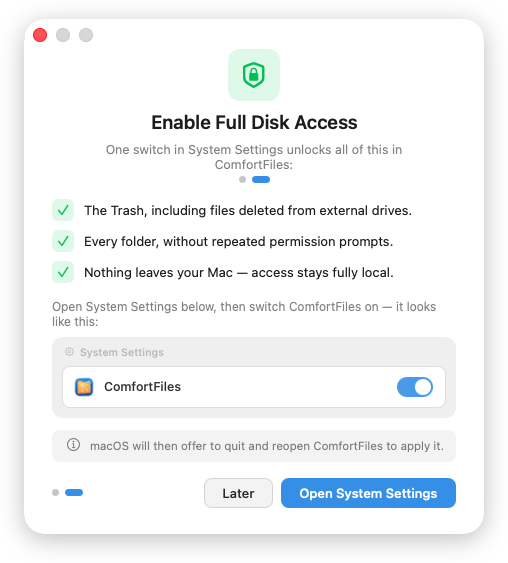
Granting it
The welcome screen on first launch offers to open the right page directly. If you skipped it, or want to check:
- Open System Settings → Privacy & Security → Full Disk Access.
- Find ComfortFiles in the list and switch it on. If it isn’t listed, use the + button and pick it from your Applications folder.
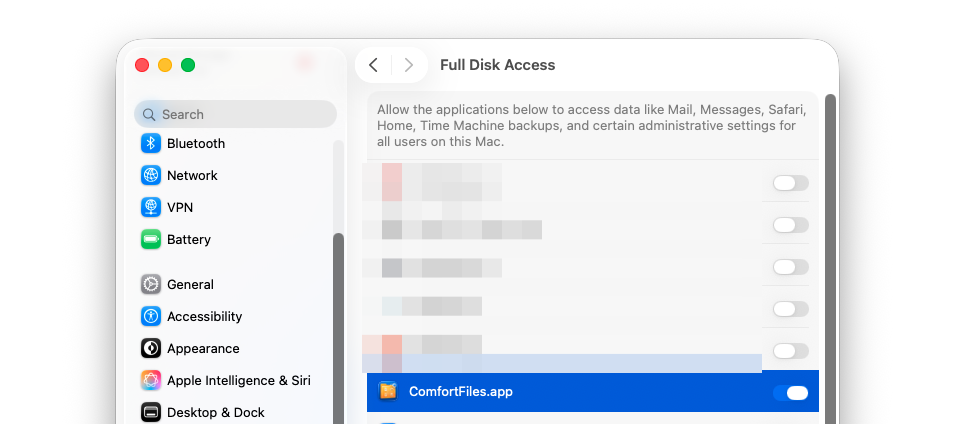
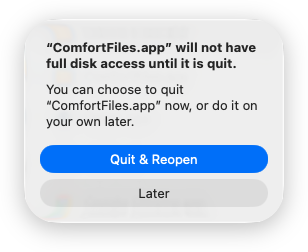
- Relaunch ComfortFiles. macOS applies privacy permissions when a process starts, so the running copy still cannot see those folders. macOS itself offers the restart:
What it actually unlocks
- Every folder, without repeated permission prompts — Desktop, Documents, Downloads and iCloud Drive stop asking one by one.
- The Trash, including files deleted from external drives. This is the part with no alternative: there is no per-folder prompt for the Trash.
- External and network volumes the same way Finder sees them.
What it does not do
Nothing leaves your Mac. ComfortFiles has no telemetry, no analytics and no account system. The few network requests it does make — checking for updates, fetching the notes for a new version, and a licence check if you have bought one — carry nothing from your disk; the privacy policy lists each of them. The permission lets the app read your disk on your machine — that is the whole of it, and you can revoke it at any time in the same System Settings pane.
If you’d rather not grant it
The app runs without it. macOS will then prompt you for Desktop, Documents and Downloads separately, the first time you open each, and the Trash will stay out of reach. You can grant Full Disk Access later — the welcome screen’s offer is not a one-time chance.
Frequently asked questions
Why does a file manager need Full Disk Access?
macOS puts Desktop, Documents, Downloads, the Trash and removable drives behind privacy protection. Without the permission an app either cannot show them at all or triggers a separate system prompt for each one. Full Disk Access replaces that drip of prompts with a single decision, and it is the only way to show the Trash.
Why do I have to restart the app after granting it?
macOS applies privacy permissions when a process starts, not while it is running. ComfortFiles offers to relaunch itself as soon as you come back from System Settings.
What can ComfortFiles do with that permission?
Read and show your files, which is what a file manager does. Nothing is uploaded: the app has no telemetry and no account, and the few network requests it makes — updates, release notes, a licence check — carry nothing from your disk. The permission is used locally on your Mac.
Can I use ComfortFiles without granting it?
Yes. The app works, and macOS will ask about protected folders one at a time as you open them. The Trash stays unavailable — that folder has no per-folder prompt.
How do I take the permission away later?
System Settings → Privacy & Security → Full Disk Access → switch ComfortFiles off, or select it and press the minus button to remove it from the list entirely.