Every release of ComfortFiles, the file manager for Mac that brings Windows Explorer habits along,
newest first. The latest version is 1.17.2, released
October 29, 2026 — Less memory, and what emptying the Trash gives back.
The first public beta went out on August 5, 2026; 20 versions have followed
since. ComfortFiles checks for new versions by itself, and after an update it shows what changed.
1.17.2 Less memory, and what emptying the Trash gives back
Uses far less memory: a big folder, a Storage scan or a closed tab gives the memory back, so your Mac stays quick.
Emptying the Trash shows how much space you will get back. How it works →
1.17.1 A disk that will not eject, explained
When a disk will not eject, you see which app is using it, and can quit that app or force the disk out.
Files that appear in a folder or leave it show up without Refresh, also after switching tabs.
Photos libraries, GarageBand projects and other packages open in their app instead of as a folder; right-click ▸ Show Package Contents looks inside.
1.17.0 PDF passwords, and folders of 3D models
Add a password to a PDF or remove one, and remove the author and other hidden details before you send it. How it works →
Large 3D models no longer slow your Mac down, and pictures in icons can be switched off in Settings ▸ View. How it works →
In search results, open the folder that holds a file, in a new tab or window. How it works →
1.16.0 Room for the update, and every app with what it keeps
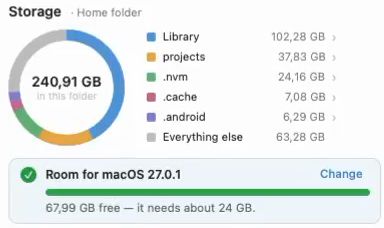
Room for the macOS update: Storage knows the update that is waiting, says how much space it needs, and fills a bar as you make room. How it works →
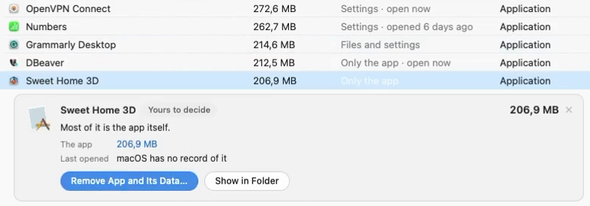
Every app with everything it keeps — and Remove App and Its Data… sends all of it to the Trash at once, with ⌘Z to bring it back. How it works →
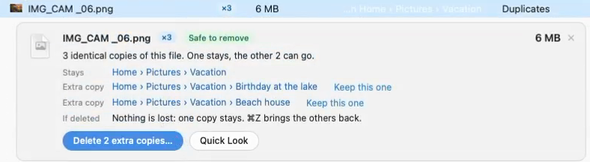
Duplicates are one row per file now: the copy in Documents stays, and the extra copies go to the Trash in one click. How it works →
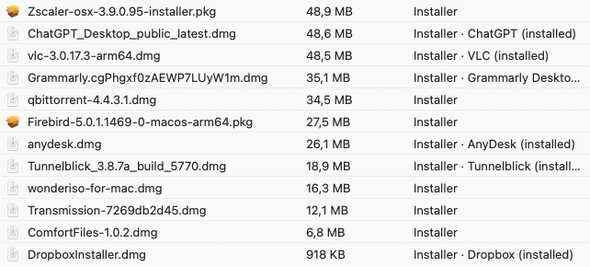
Storage finds more room: installers left after an app is in, what Messages and Mail keep, and the big caches Slack, Chrome and Adobe hide outside the usual place. How it works →
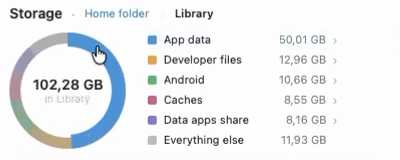
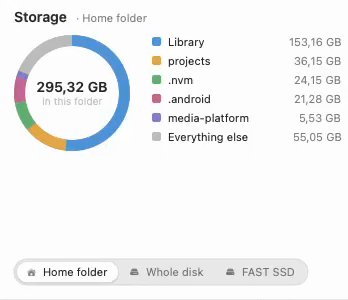
Click a slice of the ring to see inside a big folder, such as Library. How it works →
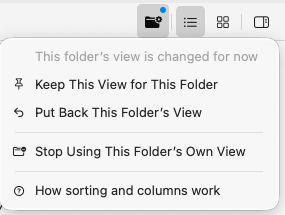
In a folder that keeps its own view, sorting it differently for a minute no longer changes it for good — a dot on the folder button offers to keep the change. How it works →
1.15.0 What is System Data, answered
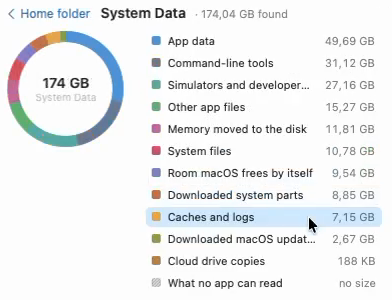
What is System Data? Storage now measures it in seconds and names each part in plain words — and says which parts are safe to remove. How it works →
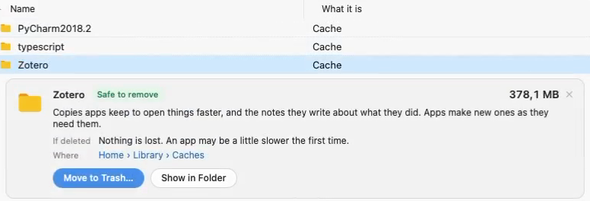
Every file in Storage says what it is. Select one, and a card shows what deleting it would cost and what to do about it. How it works →
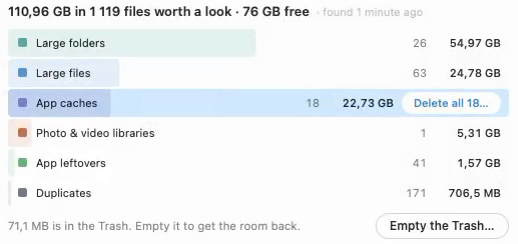
After you delete something, Storage shows how much is still in the Trash and offers to empty it. How it works →
The columns you set up — which ones, their order and widths — are now the same in every window and tab. How it works →
Rename as in Windows Explorer: click the name of the selected file once more, and it becomes editable. How it works →
1.14.0 Your cloud drives, in the sidebar
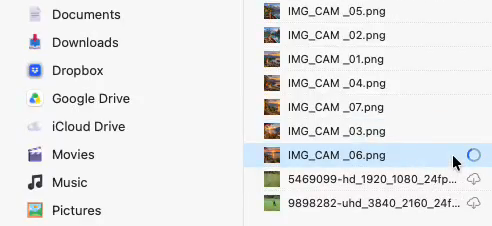
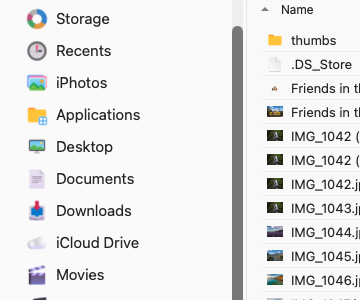
Google Drive, Dropbox, OneDrive and Box sit in the sidebar beside iCloud Drive, with two accounts of one drive under a single row. A file kept only in the cloud carries a small cloud, as in Finder, and a ring fills in while it downloads — only the file you open or select comes down, never the ones around it, and a video starts playing straight away. How it works →
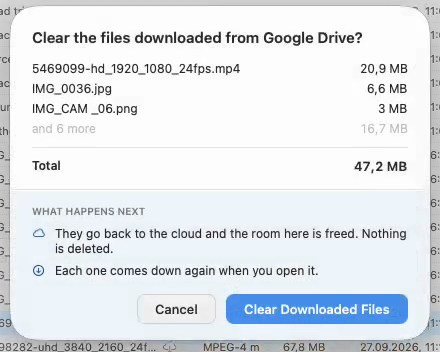
Free up room without deleting anything: right-click a file and choose Remove Download, or right-click a drive and choose Clear Downloaded Files… — the files stay in the cloud and come down again when you open them. Storage lists what came down, too. How it works →
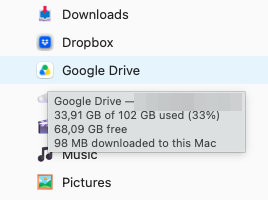
Hover over a drive to see how full it is: a Google Drive account shows your Google storage, every cloud drive shows how much of it is on this Mac, and each disk under My Mac shows used and free. How it works →
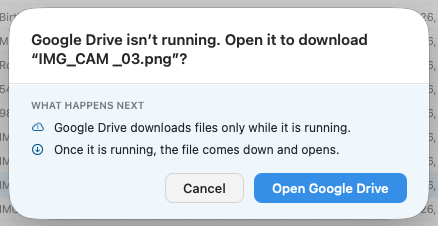
When a cloud drive’s app is not running, ComfortFiles says so and offers to open it, instead of showing a blurry thumbnail without a word — and once it is running, the file comes down and opens. How it works →
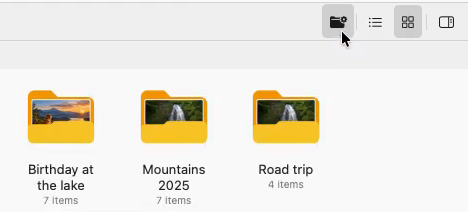
A folder can keep a view of its own: click the new folder button beside the list and icon buttons, and that folder always opens in the mode, sort and grouping you gave it. Click it again for the tab’s usual view; once more, and the folder’s comes back. How it works →
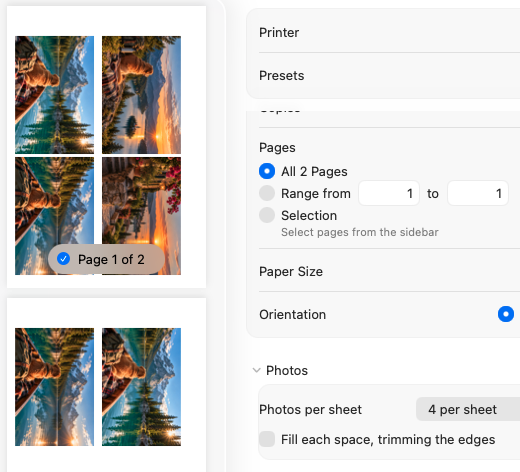
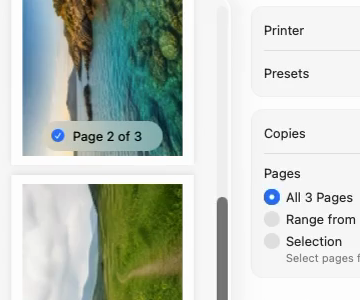
Print several photos on one sheet: the print dialog has a Photos section of its own — 2, 4 or 9 per sheet, or a contact sheet of 35 with their file names. Each photo is turned to suit its space and they run left to right in the order of the list; tick Fill each space to trim the edges the way a print shop does. The preview in the dialog follows every change. How it works →
A folder’s icon shows its new count and picture as soon as files go into it, without Refresh; a picture whose name hides its type is previewed as a picture; the rename field follows a dark theme; and the right-click menu follows the Mac’s menu text size, like every other menu.
1.13.0 Folders that show what is inside
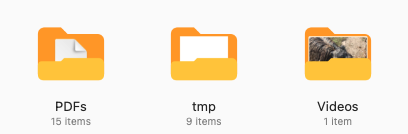
In icon view, each folder shows its first file standing inside it, the way Windows Explorer does — a photo, a frame of a video, the first page of a document. It is on from the start; Settings ▸ View ▸ Show folder previews turns it off. How it works →
Move To and Copy To are in the right-click menu from the first day: before anything is pinned they offer Choose…, and the list fills in as you use it. How it works →
Full Disk Access works on macOS 27: ComfortFiles appears in the list by itself, and the welcome screen says what to do if it does not. How it works →
A folder that something keeps writing into — a download, an iCloud upload, screenshots arriving — shows the new files within a few seconds, without pressing Refresh.
Snappier: Settings opens at once, the window no longer stalls when you switch away from it, thumbnails on external drives appear sooner, and a slow or sleeping drive no longer freezes the sidebar or holds up the launch.
1.12.0 Print, and tabs that remember their groups
Print: select photos, PDFs or text files and press ⌘P — the whole selection goes into one print dialog, in the order the list shows it. Print is in the right-click menu and the preview panel too. How it works →
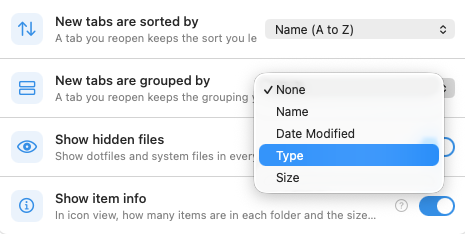
Each tab remembers its grouping, and which groups you folded away, through a restart. New tabs start with the grouping you choose in Settings ▸ View. How it works →
The sidebar follows your Mac’s Sidebar icon size in System Settings ▸ Appearance, the way Finder’s does — choose Large for bigger text. How it works →
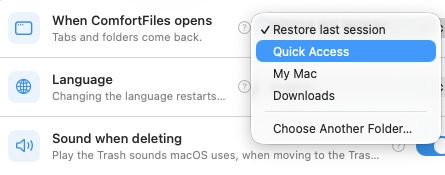
ComfortFiles can open on Quick Access every time: Settings ▸ General ▸ When ComfortFiles opens. How it works →
Faster with many tabs: the window appears sooner, quitting no longer stops to load tabs you never opened, and plugging in or ejecting a drive no longer freezes the window.
Thumbnails in a folder on an external drive appear sooner the first time you open it.
The window opens with the keyboard in the file list, so the arrow keys work straight away; the files you selected stay selected when you switch between list and icons; and selecting across groups no longer folds a group shut.
1.11.1 Faster, and selecting like Windows
Folders full of photos, folders holding large zip archives and folders on external drives open without freezing the window.
Much less memory in use with many tabs open — in our own measurements, eight tabs went from about 2.6 GB to under 400 MB.
The arrow keys move the selection in icon view again. How it works →
Selecting several files works the way it does in Explorer, in icon view too: Shift-click for a range, ⌘-click to add or remove one, Shift and the arrow keys to grow the selection, and ⌘ while dragging a rectangle to add to it. How it works →
1.11.0 Out of beta
ComfortFiles is out of beta. It still works for everyone after the free month — a license is $15 a year or $49 once, and until October 31 the first payment is half price. The title bar no longer says BETA.
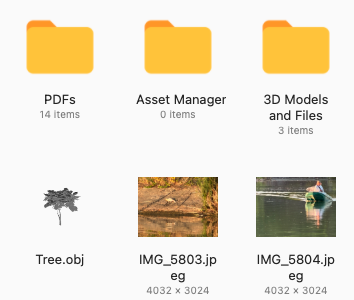
Show Item Info puts a second line under each item in icon view: how many things a folder holds — “0 items” tells you which ones are empty without opening them — and the size of each picture in pixels. Press ⌘J, or turn it on in View or in Settings. How it works →
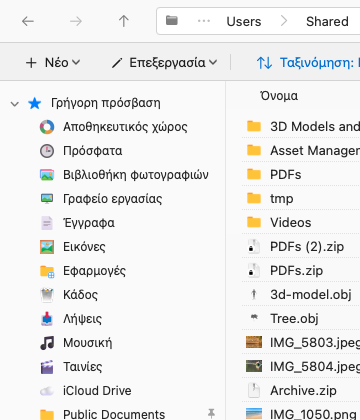
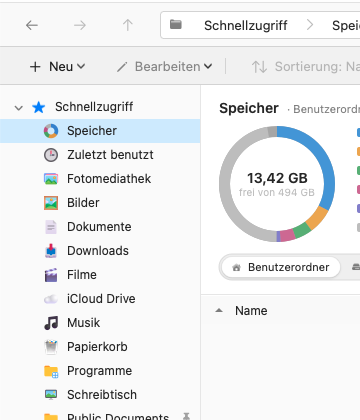
Three more languages: Traditional Chinese, Korean and Greek — eleven in all, picked from your Mac or chosen in Settings. How it works →
About ComfortFiles opens the notes for the version you are running, when there are any — this page, for this one.
Translated sentences in the Storage panel no longer lose their ending when the window has been resized, and the free space under a disk is in your language too.
1.10.0 Eight languages
ComfortFiles speaks English, Russian, Ukrainian, German, French, Spanish, Japanese and Simplified Chinese — and picks yours from your Mac, so on most Macs there is nothing to choose. Every word the app shows is translated, not only the buttons: menus, settings, dialogs and the messages that explain what went wrong. How it works →
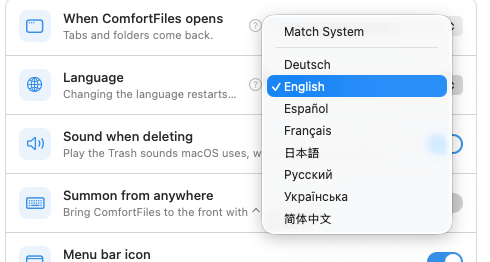
To disagree with what the Mac decided, open Settings (⌘,) and pick from Language on the General pane. Match System is the default and means “whatever the Mac is set to”. ComfortFiles offers to restart, because an app reads its words once, when it starts. How it works →
Mermaid diagrams draw themselves in the Markdown preview — flowcharts, sequences, Gantt charts — and you can zoom one with ⌘ and the scroll wheel, or drag it around, the way a map works.
The status bar describes what you selected: the size, the pixel dimensions of a picture, and when it was created and last changed.
Storage asks before it removes anything, one file or twenty — the question names what it is about to take and what it frees. The Trash group now lists everything that is in the Trash rather than only the large items, so what you see and what “Empty the Trash” takes are the same thing.
Report a Problem and Request a Feature are in the ComfortFiles menu now, next to Settings and License, instead of only under the ⋯ button.
Two crashes fixed: one that could happen while a folder was being watched for changes, and one while a window was opening.
1.9.0 Dark mode
ComfortFiles follows your Mac between light and dark, including the automatic switch at sunset — while it is running, with nothing to restart. Or keep it on one theme whatever the Mac is doing: Settings ▸ View ▸ Appearance. How it works →
Settings is three panes now — General, View and Integration — instead of one long page you had to scroll. The window resizes to the pane you pick.
Moving files to the Trash and emptying it play the sound macOS itself uses, once per action rather than once per file. Turn it off in Settings ▸ General, and it stays quiet anyway if you have switched off interface sounds for your Mac.
A tab left on Storage comes back from a restart called Storage, instead of showing the name of the folder underneath it until you clicked it.
The filter list on a column is as wide as the longest name in it, so a type like “Developer Provisioning Profile” is readable instead of cut off.
Deleting no longer sometimes asks whether to delete permanently and then reports a failure — that happened when a file had already gone, and there was nothing left to say.
Dragging a picture out of the photo library no longer leaves an empty file behind when its full-size copy could not be fetched from iCloud.
The eject and pin buttons in the sidebar stay inside it, instead of sliding past the edge on a long folder name.
File sizes in search results are the real ones. Some rows read “Zero KB” because Spotlight had not filled that in yet.
1.8.0 Where your disk space went
Storage measures your home folder, the whole disk, or any drive you have plugged in, and shows where the room went — then lists what is worth a decision: large files and folders, app caches, leftovers from apps you removed, downloads you have not opened in a year, and duplicates. It is in the sidebar under Quick Access. How it works →
Duplicates are matched by what is inside them rather than by name — two files are called copies only when they are byte for byte the same.
Nothing is moved or deleted until you say so, and what you do remove goes to the Trash, so ⌘Z brings it straight back.
A whole-disk scan no longer counted parts of the disk twice, and no longer missed folders macOS hides — so the total is the room actually in use.
1.7.0 The text inside your pictures
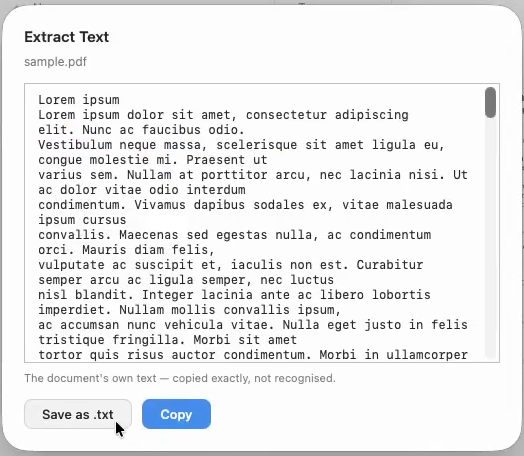
Pull the text out of a screenshot, a photo or a scan — right-click an image or a PDF and choose Extract Text. Thirty languages, read on your Mac, nothing uploaded. How it works →
Searching inside a folder now reads the folder itself, so it finds what is there even when Spotlight has not caught up.
Fixed a freeze when a text file was selected while a PDF was being previewed.
Long jobs say what they are doing and can be stopped part-way.
1.6.0 Colour for code, and where your space went
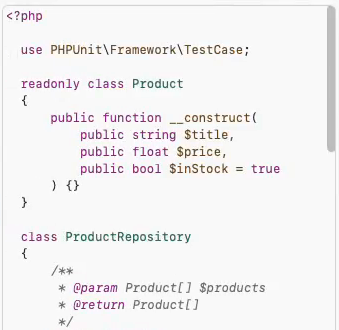
Source files preview in colour — Swift, PHP, Python, JavaScript and thirty more — in the side panel and under the space bar, with a switch for wrapping long lines and line numbers in the big preview. How it works →
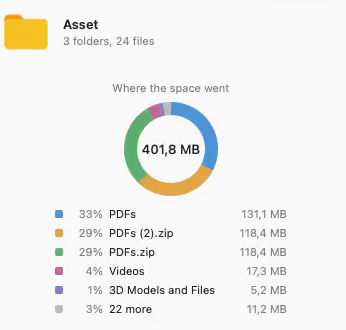
Press Space on a folder to see where its space went: the biggest things inside it as a ring, with their share and size. Click one to go there. How it works →
Typing right after clicking a folder in the sidebar now looks for a file in that folder, instead of jumping around the tree and taking you with it.
The file you had selected comes back when you reopen the app, together with the folder, the view and the panels.
1.5.0 A command bar
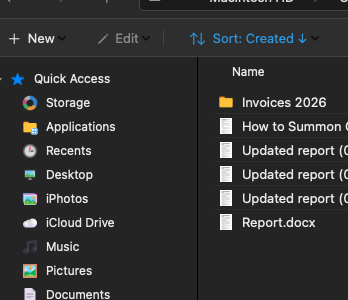
A command bar along the top of the window: New, Edit, Sort, Group and Refresh, where Explorer keeps them. How it works →
Markdown files read as formatted documents in the preview panel. How it works →
New ▸ File, with the file types you actually use. How it works →
Typing a name walks through the matches, and Applications shows Apple’s own apps as well as yours.
1.4.0 Your photo library
Browse your Photos library in the sidebar and drag pictures out of it. How it works →
Create and open password-protected ZIP archives. How it works →
Video plays in the preview panel, with scrubbing. How it works →
Windows-style keys: ⌥← / ⌥→ for back and forward, F5 to refresh — and bug fixes. How it works →
1.3.0 Move To, Copy To and your iPhone
Move To and Copy To — send files to a folder without opening it.
Open files and folders with your own choice of apps. How it works →
Take a photo or scan a document with your iPhone straight into a folder. How it works →
Remove location and camera data from your photos. How it works →
1.2.0 PDF tools
PDF tools: merge, split, rotate and extract pages. How it works →
 How it works →
  How it works →
  How it works →
  How it works →
  How it works →
  How it works →
  How it works →
  How it works →
  How it works →
  How it works →
  How it works →
  How it works →
  How it works →
  How it works →
  How it works →
  How it works →
  How it works →
  How it works →
  How it works →
  How it works →
  How it works →
  How it works →
  How it works →
  How it works →
  How it works →
  How it works →
  How it works →
  How it works →
  How it works →