How to Rotate, Convert and Combine Images in ComfortFiles
Updated August 18, 2026
ComfortFiles does the small image jobs where they come up — in the file list — instead of sending you to an editor. Select one or more images, right-click, and open Image tools: rotate, convert, combine into a PDF, or cut out the background. The same commands sit in the preview panel when a picture is selected.
The menu appears only when every selected item is an image, so it never offers to rotate a folder.
Rotate, without losing quality
Image tools ▸ Rotate Left / Rotate Right turns the selected pictures a quarter turn in place. Both directions are offered, because guessing wrong and going round three more times is a waste of clicks.
The turn is lossless. The image data is copied across untouched and only the orientation flag is rewritten, so a JPEG is never re-compressed — turn it as often as you like. ⌘Z turns it back.
One caveat worth knowing before you send the file on: this works everywhere for JPEG, whose orientation flag lives in the EXIF block that every viewer honours. For PNG, macOS records the orientation somewhere most non-Apple software ignores, so a rotated PNG may arrive at a Windows or Android user the way it started. Convert it to JPEG first if it is leaving your Mac.
Convert between formats
Image tools ▸ Convert Image… opens a small dialog and writes converted copies beside the originals — the originals are never touched.
- Format — JPEG, PNG, HEIF, TIFF, BMP or GIF.
- Size — actual size, or capped at 2048, 1280 or 640 px on the long edge.
- Quality — Maximum, High, Medium or Low, for the formats where it means anything.
- Metadata — off by default. Camera, location and timestamps are only carried over if you ask, so a photo you are about to email does not take your GPS trail with it.
Combine images into one PDF
Image tools ▸ Create PDF writes a single PDF next to the images, one page per image, in the order the list was showing them. Sort or rename the files into the order you want first, and the pages follow.
Extract the text from a picture
Image tools ▸ Extract Text reads the words in a photograph, a screenshot or a scan and puts
them where you can use them. Select one image and a panel shows what was found — read it, then
Copy it or Save as .txt beside the original. Select several and the panel is skipped:
each one gets its own <name>.txt, and the summary says how many had no readable text.
Recognition is a machine reading pixels, not a document handing over its own words, so the panel says which of the two you are looking at and shows you the result before it goes anywhere. Thirty languages are recognised, including Russian, Ukrainian, Polish, Japanese and Chinese, and the language is detected for you — there is nothing to set.
A picture with no words in it produces no file and says so. That is not an error: most photos have nothing to read.
Remove the background
On macOS 14 and later, Image tools ▸ Remove Background finds the subject and cuts it out onto transparency, writing <name> (no background).png beside each picture. The original stays as it is, and ⌘Z removes the result.
It runs on your Mac using the system’s own vision framework — no upload, no account, no network. If the picture has no clear subject, ComfortFiles says so rather than handing you an empty file.
On macOS 13 the command is absent rather than greyed out: the framework it needs does not exist there, and a permanently disabled menu item advertises something your Mac can never do.
Remove metadata
A photo carries more than the picture. Image tools ▸ Remove Metadata writes a clean copy as
<name> (no metadata).jpg and leaves the original untouched, so nothing that was recorded is lost
until you choose to lose it.
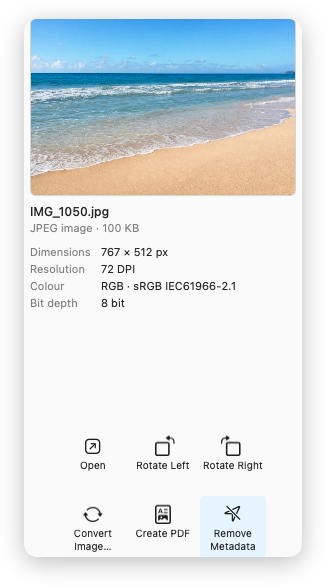
The same command is in the preview panel, as a button under the picture you are looking at.
What goes: where the photo was taken (GPS), when, on which camera and lens, at which settings, and any editing history or copyright fields written by other software. What stays: the picture, pixel for pixel. The file is not re-encoded — the image data is copied across as it was, so stripping the metadata costs no quality at all.
The command is offered for JPEG, PNG, HEIC and TIFF, and the result is checked after it is written: if anything survived, ComfortFiles tells you instead of handing you a file you believe is clean.
PNG took a second attempt. The route macOS provides left two of a photo’s four GPS keys in the file, so the format was left out rather than half-served — a promise of privacy that is only mostly true is worse than no promise. It is now rebuilt block by block instead: the picture data is copied across untouched and the blocks holding text, EXIF and timestamps simply are not, which means the pixels cannot change even in principle.
GIF and BMP are not offered and will not be: macOS refuses to rewrite them at all, and neither is a format people keep photographs in.
Worth doing before a photo goes anywhere public. A picture from a phone usually names the street it was taken on, and image hosts do not all strip it.
Good to know
- Every one of these works on a multiple selection — rotate forty photos, or convert them, in one go.
- Nothing is uploaded anywhere. All four run locally.
- Converted files, PDFs and cut-outs are written beside the originals, never over them. Only rotation changes a file in place, and that is undoable.
- WebP files can be read but not written by macOS, so they cannot be rotated. Since many downloaded images are WebP under a
.pngname, ComfortFiles names the real format when it declines.
Related
- The preview panel — the same actions as buttons under the picture you are looking at.
- Undo file operations — what ⌘Z covers and what it does not.
- Batch rename — getting a folder of photos into the order you want before making a PDF of them.
- Import from iPhone or iPad — take a photo or scan a document straight into the folder you are looking at.
Frequently asked questions
How do I rotate a photo without opening an editor on a Mac?
Select the photo in ComfortFiles, right-click, and choose Image tools ▸ Rotate Left or Rotate Right. The picture is turned in place, and ⌘Z turns it back. Several photos can be selected and turned at once.
Does rotating a photo lose quality?
No. The rotation is written as an orientation flag in the file’s metadata and the image data is copied across untouched, so a JPEG is not re-compressed and loses nothing — however many times you turn it.
Will a photo I rotated look right on Windows or Android?
For a JPEG, yes — the orientation flag lives in the EXIF block, which every viewer, phone and browser honours. For a PNG, treat it as a Mac-only change: macOS records PNG orientation in a metadata chunk that Apple software reads and most other software ignores, so the picture may arrive unrotated. If it is going to someone on another system, convert it to JPEG first, or rotate it in an editor that rewrites the pixels.
How do I combine several images into one PDF on a Mac?
Select them, right-click, and choose Image tools ▸ Create PDF. You get one PDF beside the images, one page per image, in the order the list was showing them — so sort the folder the way you want the pages ordered before you run it.
Can ComfortFiles convert HEIC photos to JPEG?
Yes. Select the photos, right-click, Image tools ▸ Convert Image… and pick JPEG. Converted copies are written beside the originals, which are left alone. The same dialog converts to PNG, HEIF, TIFF, BMP and GIF, and can resize and set the quality at the same time.
Can ComfortFiles pull the text out of a screenshot or a photo?
Yes. Select the image, right-click, Image tools ▸ Extract Text. One image opens a panel with the recognised text to read, copy, or save as a .txt beside it; several images skip the panel and write one .txt each. Thirty languages are recognised and the language is detected automatically, so there is nothing to choose. Nothing is uploaded — the recognition runs on your Mac.
Can it remove the background from a picture?
On macOS 14 Sonoma and later, yes: Image tools ▸ Remove Background cuts the subject out onto transparency and writes a new <name> (no background).png beside the original. It runs entirely on your Mac — nothing is uploaded. On macOS 13 the command is not shown at all, because the system framework it needs does not exist there.
Why does ComfortFiles say it cannot rotate my .png file?
Because the file is not really a PNG. Images downloaded from the web are often WebP with a .png or .jpg name, and macOS can read WebP but cannot write it — so the rotation has nowhere to go. ComfortFiles names the real format in the message rather than blaming your disk. Convert it to PNG or JPEG first, then rotate.