How to Find What Is Taking Up Space on a Mac
Updated October 8, 2026
A disk fills up and macOS says “Macintosh HD — 27 GB available”. Which is true, and no help at all: it does not say where the other 467 GB went, and the usual answer is to install a cleaner app that scans the whole machine and offers to fix things you cannot see.
Storage answers the question in the file manager you already have open. It is in the ComfortFiles sidebar under Quick Access — and when your Mac’s disk is nearly full, its row there says so in amber: 9 GB free.
Choose what to look at
Three buttons sit under the ring: Home folder, Whole disk, and one for every drive you have plugged in.
Before you scan anything it already shows how full that disk is, and what a previous scan found there. Press Scan and it starts measuring.
Room for a macOS update
The most common reason to go looking for space is that macOS refused to install an update and gave a number: 17 GB of free space needed. Storage keeps that number in front of you.
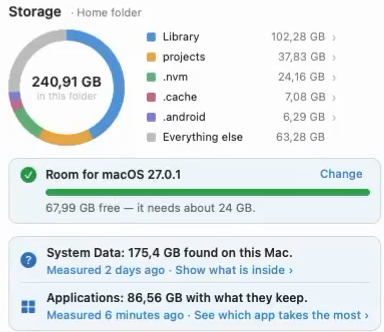
On your Mac’s own disk, a card under the ring knows the update macOS has waiting. When there is room, it says Room for macOS 27.0.1 with a full green bar. When there is not, it says macOS 27.0.1 needs about 24 GB free, with a bar of what is free now, what emptying the Trash would add (striped), and what is still left to find. The figure is about twice the download, because an update needs room to unpack as well as to arrive. Click the card to change it.
With no update waiting, the card offers Need room for something big? Set a goal › — type the number you were given.
The goal counts room that is really free on the disk, the way macOS counts it. Moving something to the Trash does not count until the Trash is emptied — that is the moment the bar moves.
What the ring says
The ring is where the space went, folder by folder, biggest first — the five largest with their sizes and everything else gathered into one line. It fills in as the scan runs rather than making you wait for a total.
Click into it. A slice or a line marked › opens that folder in the ring — 153 GB in Library, with its own biggest parts — and the list below shows what is inside, each row saying what it is. The path beside the heading takes you back. It is instant, because the scan already measured every folder worth opening. Library, the folders directly in it and anything outside your home folder can be looked at but not deleted from here: they belong to macOS and your apps, and Delete on one says why.
What the list says
Beside the ring is what is actually worth a decision, grouped:
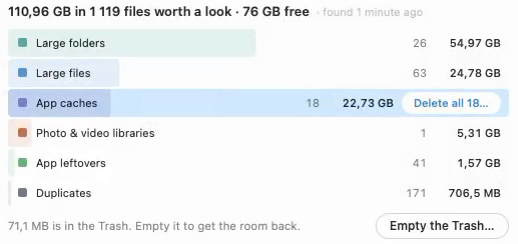
- Large files and Large folders — the biggest single things, wherever they are.
- App caches — what apps have stored to save downloading it again. Safe to remove; the app rebuilds what it needs. This includes the caches that are not where caches usually live: the ones every app built on Chrome keeps — Slack, Postman, and Chrome and Edge themselves — and Adobe’s media cache, which can grow to hundreds of gigabytes. A cache is never offered while its app is open.
- Installers — disk images and packages in Downloads and on the Desktop, and the
Install macOS …app left after an upgrade. Each one says which app it installs and whether that app is already here — Installer · Firefox (installed) — and only then does the card advise moving it to the Trash. - App leftovers — folders belonging to apps that are no longer installed.
- Old downloads — things in Downloads you have not opened in a long time.
- Duplicates — the same file, byte for byte, in more than one place. One row per file, with ×3 after its name and Stays in Home › Documents beside it: the copy in the place people keep things — Documents, Pictures, iCloud Drive — stays, rather than the one in Downloads. Its card lists every copy; Keep this one changes which, and Delete 2 extra copies… sends the others to the Trash.
- Messages and Mail — your chats with every photo and video in them, Mail’s mailboxes and the attachments you opened, each as one row. They are only shown: deleting files inside another app’s store leaves broken messages behind. The card says how to get the room back in the app itself — keep messages for a year, download attachments only for recent mail — and opens it.
- Photo & video libraries — a Photos, iMovie, Final Cut, Logic or GarageBand library is one item to macOS, so it is listed as one thing. The way to reclaim room inside one is to open the app and remove what you no longer want.
- Cloud downloads — files from Google Drive, iCloud Drive, Dropbox or OneDrive that have come down to this Mac, measured by the room they take here. The button beside the group is Remove all downloads…: the room comes back and nothing is deleted — every file stays in the cloud and downloads again when you open it. One at a time, right-click a file and choose Remove Download.
- Trash — everything in it, including the separate trash every external drive keeps. This is the one group listed in full rather than filtered by size, because the button beside it empties all of it.
Click a group to show only it, and click it again to see everything.
A folder called com.spotify.client or 00008110-001A… tells you nothing, so every row says what it is, in a column beside its name: Cache, App data · WhatsApp, iPhone or iPad backup, Library · Photos, Left by a removed app. Select a row and a card opens under it: one plain sentence, what deleting it would cost, where it lives, and — as the one filled button — what ComfortFiles advises. For a cache that is Move to Trash…; for a file from a cloud drive, Remove Download; for a Photos library, Open in Photos, because deleting a library by hand is the wrong way. For an ordinary file of yours there is no advice, only the facts, including when it was last opened. A click on the row again, or Esc, closes the card. Where ComfortFiles does not know what a file is, it does not guess: it says where the file lives, in words — Home › Movies › Trips — which is also how to tell two duplicates apart. To go there, right-click the row and choose Show in Folder: its folder opens in a new tab with the file selected, and the scan stays where it was.
Applications and what they keep
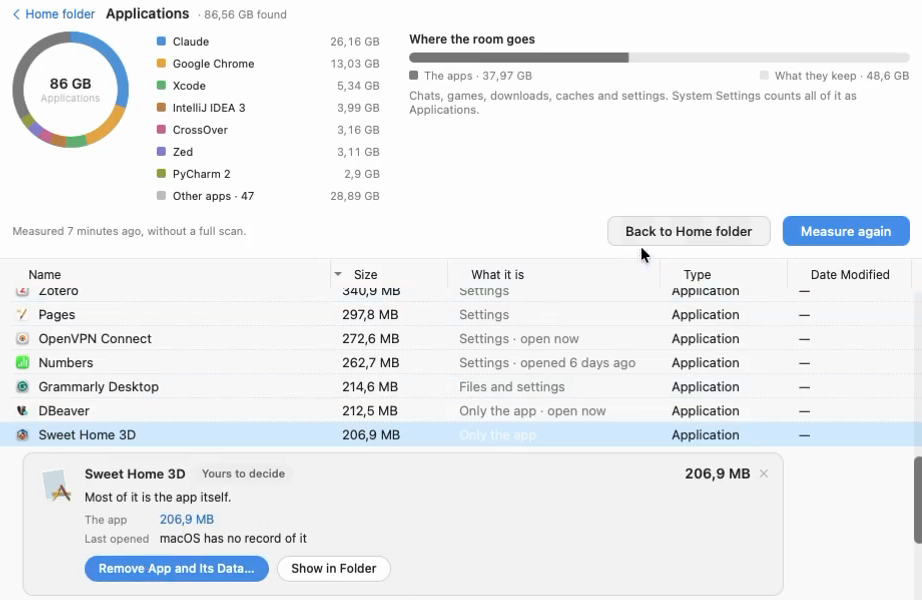
System Settings can say that Applications take 266 GB and then show you the apps alone: everything they keep is counted with them and never shown. Under the ring, Applications: 84 GB with what they keep — click See which app takes the most › — puts them side by side: a ring of the biggest apps, the split between the apps themselves and what they keep, and every app as a row, biggest first, with what it keeps and when you last opened it. Not opened in 6 months shows only those. An app with no date is never called unused, because macOS does not always know.
Select an app and its card shows the app, its data and its cache, each with where it is. Remove App and Its Data… asks once, then moves all of it to the Trash together, so one ⌘Z brings all of it back. Clear Cache… removes the cache alone. An app that is open, one whose maker ships its own uninstaller, and one that put parts into macOS itself are left where they are, and the question says why. For an app from the App Store, macOS asks for your administrator password first, the way it does in Finder.
What is System Data?
System Settings shows one large number called System Data and nothing behind it. It is whatever macOS could not sort into its other categories, which is why it is so different from one Mac to the next — and why it is the question people ask most.
Under the ring, What is System Data? opens the answer. It measures the places macOS counts there, in a few seconds and without a full scan, and names each part in plain words: App data, Caches and logs, Memory moved to the disk, Room macOS frees by itself, Downloaded macOS updates, and so on. Each one says whose decision it is — Yours to decide, Safe to remove, macOS clears these itself or Leave it to macOS — and what removing it would do. Every part that is folders lists them below, biggest first, so a figure always has something under it. The ones that are yours to remove go to the Trash like everything else here. The rest — Homebrew’s folder, Xcode’s simulators, a cloud drive — wear a padlock and say view only: they are there to show where the room went, and Delete on one explains what to do instead. Where there is a place to do it, the card has the button: Open Software Update for downloaded updates, Clear Downloaded Files… for cloud drives.
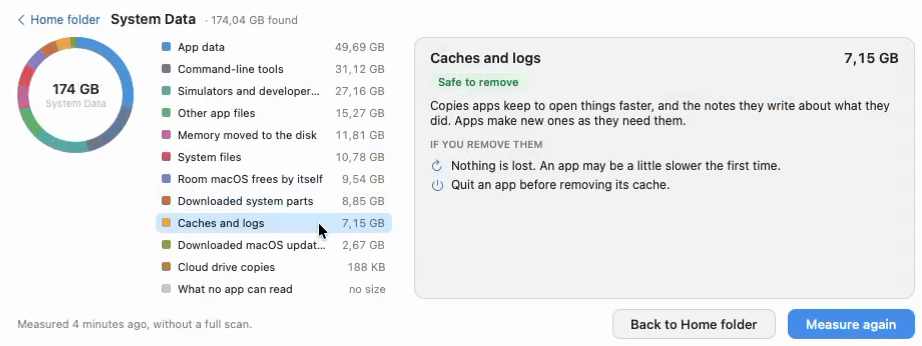
One part has no size: what no app can read — Spotlight’s search index, other accounts on the Mac, parts of macOS itself. That is why the figure in System Settings can be a little larger than the one here. Never delete those files by hand; the card says how to make them smaller safely.
Getting the room back
Deleting from Storage moves things to the Trash, and the Trash still takes up the room until it is emptied. So after a delete the band says it in one line — 20,4 GB is in the Trash. Empty it to get the room back. — with Empty the Trash… beside it, and what you deleted joins the Trash group at once, where ⌘Z can still bring it back. Once the Trash is emptied, the free space in the heading is read again and a quiet 18 GB freed today appears next to it. That figure counts only room that really came back: a move to the Trash is never counted.
Nothing happens until you decide
A scan reads. It does not move, rename or remove anything.
When you do decide, ComfortFiles asks first — one file or twenty. The question names what it is about to take, adds up what it frees, and says how to undo it. That is not how deleting works in an ordinary folder, where a file goes quietly to the Trash and ⌘Z brings it back; here you are deciding about files you have never seen, with names like com.spotify.client, and a question is worth the two seconds.
Then the files go to the Trash — so ⌘Z undoes it immediately, and nothing is really gone until you empty the Trash yourself. There is no button that removes everything at once, because “everything” is not a category anybody can define for your files but you.
Cloud downloads are the other exception, because nothing there is deleted at all: removing a download returns the file to its cloud, the way Finder’s Remove Download does, and you are asked once, with the room it frees.
The Trash group is the exception, and only because the work is already done: what is in there was deleted a while ago and is still taking up room. Its button is Empty the Trash…, it asks the way macOS asks, and there is no ⌘Z afterwards.
Good to know
- A scan of a large disk takes minutes. It shows what it has found so far as it goes, and you can leave it running and come back. Scanning the whole disk or a drive, a card under the ring offers Notify me when it’s done — click it once and macOS asks whether ComfortFiles may send notifications; then a notification arrives when the scan finishes in a tab you are not looking at, and clicking it brings that tab back.
- You can stop it. Cancel puts the panel back where the scan started; nothing is half-done.
- Some places cannot be read. The system volume is sealed and other accounts are private. Where a folder was refused, the panel says so instead of quietly counting it as zero.
- The numbers are what the files take on disk, not what they claim to be. A 4 MB file with no blocks allocated to it frees nothing, and it is not offered as if it would.
- Storage is always a list. Its rows are sizes and answers about what each thing is, which a grid of icons cannot show, so the icon view is off while Storage is open; the folders you visit keep their own view.
Frequently asked questions
What is System Data on a Mac, and can I delete it?
System Data is what macOS could not sort into its other storage categories, so it is different on every Mac: what apps keep for themselves, caches, memory moved to the disk, room macOS frees by itself, downloaded updates. In Storage, What is System Data? under the ring measures those places in a few seconds and names each part, with whose decision it is and what removing it does. Some parts are yours to remove; some macOS clears by itself; the part no app can read — Spotlight’s index, other accounts — should never be deleted by hand.
How do I see what is using space on my Mac?
Click Storage under Quick Access in the ComfortFiles sidebar, choose what to look at — your home folder, the whole disk, or an attached drive — and press Scan. The ring shows where the space went, folder by folder, and the list beside it groups what is worth a decision: large files and folders, app caches, leftovers from apps you removed, downloads you have not touched in a year, and duplicate files.
Does it delete anything on its own?
No. A scan reads; it never moves or removes a thing. Anything you do decide to remove is confirmed first — one file or twenty. Everything you decide to remove goes to the Trash, so ⌘Z brings it straight back and the Trash holds it until you empty it. There is no “clean up everything” button, because nobody can know what your files are worth except you.
Is this a Mac cleaner app?
No, and deliberately not. Cleaner apps sell urgency — a scan that finds thousands of “issues” and one button that removes them. This shows you where your space went and hands the decisions to you, one list at a time, inside the file manager you already have open.
How does it find duplicate files?
By content, not by name: files of the same size are compared by a fingerprint of their first 64 KB and then, only if that matches, by a fingerprint of the whole file. Two files are called duplicates when they are byte for byte the same. It is limited to types where a duplicate is genuinely yours to delete — documents, images, video, audio, archives — and skips the insides of applications and app support folders, where a second copy is the program’s business rather than yours.
Why is the whole disk smaller than what my Mac says is used?
Because parts of a disk are not yours to read. macOS keeps its system on a sealed volume, other accounts’ folders are private, and Time Machine’s local snapshots take room that no folder can show. Storage counts what it can actually reach and does not invent the rest.
How do I free up space for a macOS update?
Open Storage: under the ring a card already knows the update macOS has waiting and says how much room it needs — macOS 27.0.1 needs about 24 GB free — with a bar of what is free, what emptying the Trash would add, and what is still left to find. As you remove things and empty the Trash, the bar fills; when there is room, it says so. With no update waiting, Set a goal and type the number macOS asked for.
How do I uninstall an app completely on a Mac?
In Storage, open Applications under the ring: every app is listed with what it keeps — its data, its cache — and the card under an app has Remove App and Its Data…. It asks once, moves the app and everything it keeps to the Trash together, and one ⌘Z brings it all back. An app that is open, one whose maker ships its own uninstaller, or one that put parts into macOS itself is left alone, and the question says why.
Why does System Settings say Applications take so much space?
Because it counts what each app keeps — documents it saved, caches, downloaded content — as Applications, and then shows you the apps alone. Storage shows the two side by side: Applications: 84 GB with what they keep, and every app with its own share, biggest first, and when you last opened it.
Can I look at an external drive?
Yes — every mounted drive gets its own button beside “Home folder” and “Whole disk”. A drive is scanned on its own terms, so what you see is that drive’s space rather than a slice of your Mac’s.