How to Compress a PDF on a Mac (Measured, Not Guessed)
Updated August 17, 2026
Every guide to this says “use Preview” or “use Ghostscript” and stops. So we ran all of them on the same file — a 106 MB, 99-page scanned book — and wrote down what came back.
Every route below runs on your own Mac — the file is never uploaded.
| Route | Result | Time | File leaves your Mac |
|---|---|---|---|
Ghostscript -dPDFSETTINGS=/printer | 105.8 MB | 3.5 s | No |
| Preview ▸ Reduce File Size | 58.3 MB | 11 s | No |
Ghostscript -dPDFSETTINGS=/ebook | 48.0 MB | 129 s | No |
Ghostscript -dPDFSETTINGS=/screen | 48.0 MB | 129 s | No |
| ComfortFiles ▸ Compress | 13.8 MB | 5 s | No |
| ComfortFiles ▸ Compress ▸ Ultra | 9.8 MB | 5 s | No |
| Online compressors (iLovePDF, Smallpdf, Adobe) | not measured here | — | Yes — uploaded to their servers |
Two of those numbers deserve an explanation before anything else, because they are the reason most advice about this is wrong.
Can I compress a PDF without uploading it?
Yes — and on a Mac you never need to upload one. Preview is already installed and does it offline; Ghostscript, if you have it, is a local command; ComfortFiles does it from the right-click menu in the file list. None of them sends the document anywhere.
The online compressors are quicker to reach and they work, but the file has to go to their servers to be processed, and their privacy policies differ on what happens to it afterwards. Contracts, passports, bank statements and medical records are the documents people most often need to shrink, and they are the ones least worth uploading to save a few megabytes.
The popular advice did nothing
/screen and /ebook are the two Ghostscript presets every forum answer recommends, and they differ by design: /screen downsamples images to 72 dpi, /ebook to 150. On this book they returned files one byte apart.
The reason is in the page geometry. These pages are 2445 points wide — about 34 inches. An image spanning a page that size is already under 72 dpi before anything touches it, so both thresholds passed straight over it and neither preset downsampled a thing. All the shrinking came from re-encoding, not from resolution.
Dots per inch is not the number that decides your file size. Pixels per page is. Two documents at “150 dpi” can differ tenfold if one has A4 pages and the other has poster-sized ones, and every dpi-based tool is blind to the difference.
Route 1: Preview, no installation
Built into macOS, and the right first attempt:
- Open the PDF in Preview.
- File ▸ Export…
- Set Quartz Filter to Reduce File Size.
- Save under a new name.
On our book: 106 MB → 58.3 MB in 11 seconds, with no upload and nothing installed.
Its limitation is that it has exactly one setting. There is no target, no quality dial and no report — if 58 MB is still too big, Preview has nothing further to offer. It is also the reason for the folklore that Preview “ruins” PDFs: on documents whose images are already well compressed, that one fixed setting re-encodes them worse than they were, and the file comes out larger. We have measured that happening — a scan that grew 4.2× at a high quality setting.
Route 2: Ghostscript, if you have a terminal
brew install ghostscript
gs -sDEVICE=pdfwrite -dCompatibilityLevel=1.4 -dPDFSETTINGS=/ebook \
   -dNOPAUSE -dQUIET -dBATCH -sOutputFile=smaller.pdf original.pdf
/ebook gave the best Ghostscript result on our file: 48 MB. It also took 129 seconds — about 25× longer than the other routes, for a file 3.5× larger than what a pixel-based tool produced. /printer returned the file essentially unchanged, which is what it is for.
Ghostscript is free, thorough and genuinely good at rebuilding damaged PDFs. As a way to hit a size, it is a slow instrument pointed at the wrong measurement.
Route 3: ComfortFiles, if you want to name a limit
The reason people compress a PDF is almost never “make it smaller”. It is get under a number — a mail server that refuses 25 MB, a portal that wants 5, a job application that says 2.
ComfortFiles asks for that number instead of a quality percentage. Right-click the PDF → PDF tools ▸ Compress…, pick Under 1 MB, Under 5 MB, Under 10 MB or As small as possible, and it works down a ladder until the document is under the limit, then stops.
On our book, “As small as possible” returned 13.8 MB in 5 seconds — 3.5× smaller than Ghostscript’s best result and 25× faster, because it works in pixels per page rather than dpi.
The original is never touched. The result is written beside it as <name> (compressed).pdf, so a bad result costs you nothing.
What it does when it cannot win
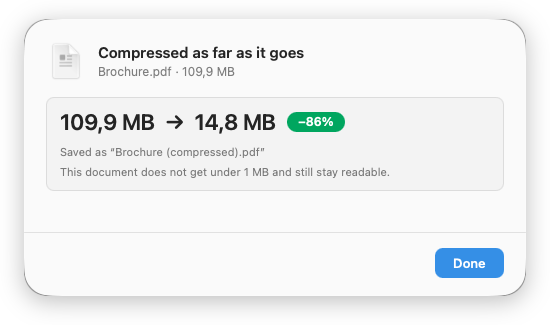
Ask that same book for Under 10 MB and it cannot be done — 13.8 MB is this document’s floor, past which the pages stop being readable. ComfortFiles takes 6 seconds to establish that, then says so: it reports that the target was missed, shows what it did reach, and still writes the 13.8 MB file, because someone who asked for 10 MB usually still wants the 13.8.
That is the part no online compressor does. “Compress PDF to 1MB” is a phrase people type into Google roughly as often as “compress pdf”, and it is a promise nothing can keep — every document has a floor set by what is inside it. A tool can either pretend otherwise, or tell you where the floor is.
Route 4: rebuild the pages as images (scans only)
There is one route that beats all of the above, and it is the one worth understanding before you use it: render every page, save it as a JPEG, and reassemble the document. In ComfortFiles that is Compress… ▸ Ultra. On our book it returned 9.8 MB — against 13.8 MB for ordinary compression, 48 MB for Ghostscript and 58 MB for Preview.
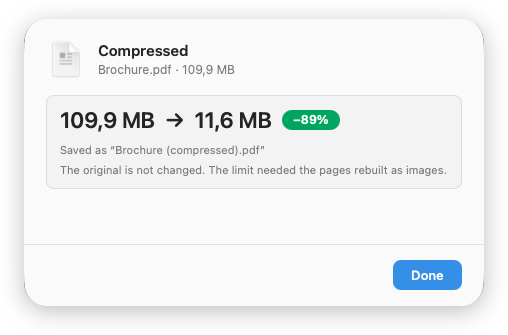
That is the same Brochure.pdf as the missed-target panel further up, where ordinary compression stopped at 14,8 MB. Rebuilding the pages took it to 11,6 MB — and the sheet says so plainly, because a document that has come back as pictures of itself is a different kind of document.
The catch is the whole story:
| Ordinary compression | Rebuilt as images | |
|---|---|---|
| 106 MB scanned book | 13.8 MB | 9.8 MB |
| 720 KB text document | barely moves | 3.2 MB — 4.5× bigger |
| Text after | selectable, searchable | a picture of text |
A page of text costs kilobytes as letters and hundreds of kilobytes as a photograph of letters, which is why this route makes text documents bigger. And what it takes away is not only searching: copying a phone number out of the document, and a screen reader reading it aloud, both go with it.
So the rule is simple — use it on scans, not on documents. A scan is already pictures of pages, so nothing is lost that was ever there. ComfortFiles samples five pages before it starts and tells you which of the two you have; if the result would come out bigger than the original, it writes nothing and says why.
What actually makes a PDF big
Worth knowing before you spend an afternoon on this:
- Scans are big; text is not. Compression only touches images. A 40-page contract typed in Word will barely move, because there is nothing in it to squeeze — it is already as small as it goes.
- A repeated image is stored once. A slide deck reusing one background does not cost you that background 30 times.
- There is a floor, and it is about a quarter of the original for a typical scan. Anything claiming to beat that by a wide margin is deciding for you that the pages no longer need to be readable.
- Readability has a measurable edge. We compared the same page rendered at each step down: at 1100 pixels across it still reads; at 850 it does not. That is where ComfortFiles stops, on purpose — a file too small to read is not a smaller file, it is a lost one.
Which one to use
Preview if you need it once and 1.8× is enough. Ghostscript if you are already in a terminal and have two minutes. Rebuilding as images if it is a scan and the number is stubborn — and never on something you will want to search. ComfortFiles if you have a number to hit, or if this happens often enough that “open Preview, export, choose a filter, save under a new name” has started to grate — it is a right-click in the file list, and it tells you what it got.
All three run entirely on your Mac. See how the PDF tools work for the rest of them — merging, splitting, extracting pages and rotating.
Frequently asked questions
How do I compress a PDF on a Mac for free?
Open it in Preview, choose File ▸ Export…, and set Quartz Filter to Reduce File Size. Nothing to install and nothing leaves your Mac. On a 106 MB scanned book it returned 58 MB in about 11 seconds. It has one fixed setting, so if that result is not small enough there is no dial to turn — see the other routes on this page.
Can I compress a PDF to exactly 1MB?
Not reliably, and no tool can promise it. Every PDF has a floor: the point past which the pages stop being readable, which depends on what is in the document. A 2.7 MB scan we measured could reach under 1 MB; it could not reach under 0.5 MB at any setting. A tool that offers "compress to 1MB" as a button either misses quietly or hands you an unreadable file. Ask for a limit, then check what you actually got.
Why does compressing my PDF not make it smaller?
Because compression only works on images. Text and vector graphics are already compact and pass through untouched, so a PDF that is mostly text has nothing to squeeze — that is why a 40-page contract barely moves while a 10-page scan collapses. If your file is already small and refuses to shrink, it is almost certainly text, and it is already as small as it goes.
Why did my PDF get BIGGER after compressing it?
Because the compressor re-encoded images that were already better compressed than its own setting. We measured this: at a high quality setting a scan came back 4.2× larger than it started. Any tool worth using compares the two and keeps the smaller one. If yours grew, throw the result away and keep the original.
Is Ghostscript good for compressing PDFs on a Mac?
Sometimes, and it is slow. On our 106 MB scan -dPDFSETTINGS=/ebook returned 48 MB in 129 seconds. But /screen, which is supposed to be far more aggressive, returned a file one byte different — because both work in dots per inch, and this book's pages are physically enormous, so the images were already below both thresholds. The most-repeated advice on the internet did nothing on the file we tried it on.
What is the smallest a scanned PDF can go on a Mac?
Smaller than any of the usual routes reach, if you are willing to give up the text. Rebuilding every page as a JPEG took our 106 MB book to 9.8 MB — against 13.8 MB for ordinary compression and 48 MB for Ghostscript. It suits scans, because a scan is already pictures of pages. On a document with real text it does the opposite: a 720 KB text file came back at 3.2 MB, four and a half times bigger, with nothing selectable left in it.
Do online PDF compressors keep my file?
They keep it long enough to process it, and their privacy policies differ on what happens next. The more useful question is whether it needs to leave at all: everything on this page runs on your own Mac. Contracts, passports, bank statements and medical records are the documents people most often need to shrink, and they are exactly the ones that should not be uploaded to a stranger's server to save a few megabytes.
Does compressing a PDF break the text you can select?
No, on any of these routes. They all re-encode the images and copy text and vector content across as-is, so text stays selectable and searchable afterwards. The exception is a scanned document, which never had selectable text to begin with — the "text" in a scan is a photograph of text, and it stays a photograph.