How to Merge, Split and Compress PDFs in ComfortFiles
Updated October 14, 2026
The jobs people usually solve by uploading a PDF to a website — merge it, split it, make it smaller, drop a page — happen here in the file list instead, and none of them sends the document anywhere.
Select one or more PDFs, right-click, and open PDF tools. When a single PDF is selected, most of the same commands are also buttons in the preview panel.
The menu is in three parts, separated by lines. The first runs on the spot; the second asks a question first; the third — passwords and metadata — makes a copy and checks it before handing it back.
Merge
Select two or more PDFs → PDF tools ▸ Merge. A new Merged.pdf appears in the same folder; the originals are untouched.
The pages come out in the order your list was showing. Sort the folder first and the merge follows it. The usual trap is names like Scan 1, Scan 2, Scan 10, which sort as 1, 10, 2 — batch rename them with leading zeros once and it stops being a problem.
Merge is absent from the menu when only one file is selected, because joining one document is not an operation.
Split into pages
PDF tools ▸ Split into pages writes every page as its own PDF into a new <name> (pages) folder beside the original. A 99-page document takes about three seconds.
Page numbers are padded to the width of the document — Contract 01.pdf through Contract 99.pdf — so they sort correctly in the list instead of putting page 10 between 1 and 2.
Rotate Left / Rotate Right
Turns every page of every selected PDF. This is the one command that changes the original, and it is the one you can take back: ⌘Z puts it exactly where it was. Rotation is recorded as a property of the page, so nothing is re-rendered and nothing is lost, however many times you turn it.
Both directions are offered rather than one, for the same reason Image tools offers both: guessing wrong and going round three more times is a waste of clicks.
Compress…
The reason to compress a PDF is almost never “make it smaller” — it is get under a number, because a mail server, a portal or an application form named one. So the dialog asks for the number:
- Under 1 MB
- Under 5 MB
- Under 10 MB
- As small as possible
- Ultra — rebuild pages as images
It works down a ladder of settings until the document is under the limit, then stops, showing what it is doing and the smallest size reached so far. On a 99-page scanned book, “As small as possible” took it from 106 MB to 13.8 MB in about five seconds.
Ultra, and when not to use it
Ultra takes a different route: every page is rendered, encoded as a JPEG, and reassembled into a new document. On that same scanned book it reaches 9.8 MB where the normal ladder stops at 13.8 — the strongest thing in the dialog for the documents it suits.
It is offered separately rather than as one more rung because it is not simply “more” of the same thing:
- On scans it wins. A scan is already pictures of pages; re-encoding them as better-compressed pictures loses nothing that was there.
- On text documents it makes things worse. A 26-page text document of 720 KB comes back as 3.2 MB — four and a half times bigger — because a page of text costs kilobytes as letters and hundreds of kilobytes as a photograph of letters.
- The text stops being text. No selecting, no copying, no searching, and a screen reader has nothing left to read.
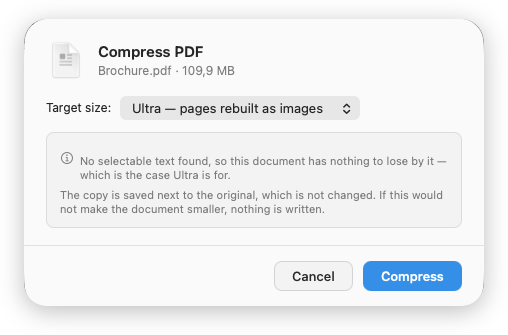
You are not left to guess which kind you have. ComfortFiles samples five pages spread through the document and says so before you commit: either that this document has text to lose and will probably grow, or that it has none — which is also the answer for a scan someone has already run OCR over. And if the result would be bigger than the original, nothing is written and the sheet tells you why.
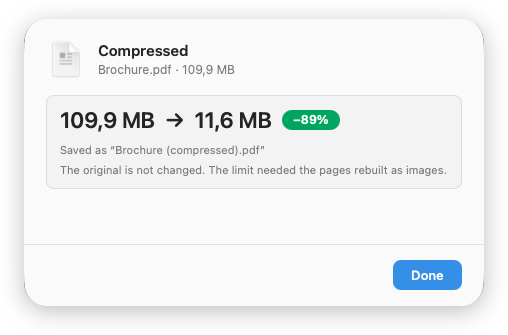
The named limits use it too, but only when it is safe. Ask for “under 10 MB” and the ladder tries first; if it cannot get there and the document has no extractable text, the pages are rebuilt as a fallback. On the measured book that is the difference between missing at 14.5 MB and meeting the limit at 9.8. When that happens the result says so, because a document that has come back as pictures of itself is a different kind of document, and finding that out later is worse than being told.
The result is written beside the original as <name> (compressed).pdf. The original is never replaced — compression is lossy, and an undo that cannot restore what it overwrote is not an undo.
When the target cannot be met, it says so. Ask that same book for under 10 MB and it cannot be done: 13.8 MB is where its pages stop being readable. ComfortFiles establishes that, reports the miss, shows what it did reach, and still writes the file — because someone who asked for 10 MB usually still wants the 13.8. What it will not do is keep going into unreadable.
Two things are worth knowing before you reach for it:
- Compression only touches images. Text and vector graphics are already compact and pass through untouched, so a text-only document may come back barely smaller — there was nothing in it to squeeze.
- If nothing would be gained, nothing is written. No new file, no clutter, and a plain answer instead.
For how this compares with Preview’s own Reduce File Size and with Ghostscript — all measured on the same file — see how to compress a PDF on a Mac.
Extract or Remove Pages…
“Extract pages 4–9” and “delete page 3” are the same question — which pages? — so they are one dialog with a switch, not two commands to pick between before you know which one you meant.
Type a range like 1-3, 7, 10-12, then choose Keep only these or Remove these. As you type, the dialog says what you will get — “Keeps 7 of 99 pages” — because a typed range is easy to get wrong and impossible to check by looking at it. It also names the file it will create and states that the original stays as it is:
| Choice | You get |
|---|---|
| Keep only these | <name> (pages 1-3, 7, 10-12).pdf |
| Remove these | <name> (trimmed).pdf |
Reversed ranges (9-4) are read the way you meant them, and a range that would remove every page leaves the button off rather than producing an empty document.
PDF to Images
Writes one PNG per page into a <name> (images) folder. Every page is rendered at twice its nominal size, so the images stay sharp on a Retina display — which is also why it is the slow one, around a minute for 99 pages.
It runs with a progress bar and can be stopped. A cancelled run removes the partial folder rather than leaving you to work out which pages made it.
Extract Text
PDF tools ▸ Extract Text gives you the document’s words. When the PDF already carries text — anything produced by a word processor or an export — they are copied out exactly, not recognised, and the panel says so. When the pages are images, which is what a scan is, the text is read from them instead.
One document opens a panel to read and copy from, or to save as a .txt beside the original.
Several documents skip the panel and write one .txt each, with a count of any that had nothing
readable in them.
Add Password… / Remove Password…
Add Password… asks for a password twice and writes <name> (protected).pdf beside the original, which asks for it to open. ComfortFiles does not keep the password anywhere — if it is forgotten, nobody can open the copy, ComfortFiles included. The original is left as it was.
On a PDF that already has a password the row reads Remove Password…: type it, and <name> (unlocked).pdf is written beside the original without it. It has to be the password allowed to change the document’s security. Some PDFs have two — one to open them, and one their author keeps for changing what may be done with them — and the first is not leave to take the protection off. A wrong password is said so in the same dialog, so you can try again.
Both work on one PDF at a time.
Remove Metadata
A PDF carries more than its pages: the author’s name, the app and computer it came from, its dates, the names on its comments — and every photo inside it keeps what the camera wrote, often including where it was taken. Remove Metadata writes <name> (no metadata).pdf beside the original without any of it. The photos are not re-compressed: their pixels are exactly the same.
The copy is checked after it is written. If anything is still in it — a picture stored in a way that cannot be cleaned is the case that does it — the copy is deleted and you are told what remained, rather than handed a file that only looks clean. What the copy does still say is what every PDF a Mac saves says about itself: that macOS wrote it, and when.
It works on several PDFs at once. A PDF with a password needs the password taken off first.
What this deliberately does not do
Editing the text inside a PDF, removing watermarks, and opening or unlocking password-protected documents you do not have the password for are outside what this is. A locked PDF is reported as locked rather than half-processed.
These are the file-shaped PDF jobs: joining, splitting, shrinking, turning, choosing pages, passwords and metadata. They are the ones people currently solve by uploading a document to a website, and they are the ones a file manager can do without the document ever leaving the machine.
Frequently asked questions
Where are the PDF tools in ComfortFiles?
Select one or more PDFs in the file list and right-click: the PDF tools submenu appears. It is only built for a selection that is entirely PDFs, so it never shows up over a mixed selection and then fails halfway. Most of the same commands sit in the preview panel as buttons when a single PDF is selected.
Does ComfortFiles change my original PDF?
Only Rotate, which turns the pages in place and is undone with ⌘Z — rotation is lossless and instantly reversible, so a second copy would be clutter rather than safety. Everything else writes a new file beside the original and leaves it alone: Merged.pdf, <name> (compressed).pdf, <name> (trimmed).pdf, <name> (protected).pdf, <name> (unlocked).pdf, <name> (no metadata).pdf, or a new folder for the ones that produce many files.
Why is Merge missing from the menu?
Because only one PDF is selected, and joining one document is not an operation. Select two or more and it appears. The same rule applies elsewhere in the app: a command that cannot do anything here is absent rather than permanently greyed out.
Does compressing a PDF upload it anywhere?
No. Every one of these commands runs on your Mac through the PDF frameworks macOS already ships. Nothing is uploaded, there is no account, and they all work with the network off — which is the point, given that the documents people compress and merge are contracts, statements and IDs.
What is Ultra compression, and when should I avoid it?
It rebuilds every page as an image, which on a 99-page scan reaches 9.8 MB where the normal route stops at 13.8. Use it for scans and photographed documents. Avoid it for anything with real text: a 26-page, 720 KB text document comes back at 3.2 MB — four and a half times bigger — and the text stops being selectable, copyable or searchable. ComfortFiles samples five pages and tells you which kind of document you have before you commit.
What does "As small as possible" actually do?
It goes straight to the smallest setting that still leaves the pages readable, rather than trying every step on the way down and throwing the results away. On a 99-page scanned book that is about 5 seconds, and it took the file from 106 MB to 13.8 MB.
What happens if the size limit I picked cannot be reached?
It tells you. Every document has a floor — past a point the pages stop being readable — and when the target is below it, ComfortFiles reports that the target was missed, shows the smallest it did reach, and still writes that file, because someone who asked for 10 MB usually still wants the 13.8 MB. It does not quietly hand you a file that misses, and it does not quietly hand you an unreadable one.
Can I stop a long PDF job?
Yes. Anything that takes a while — compressing, splitting, rendering to images — runs with a progress bar and a Cancel button, and the app stays usable while it works. A cancelled job cleans up after itself: the half-finished folder is removed rather than left for you to work out how far it got.
Can ComfortFiles remove a PDF password?
One you know, yes: PDF tools ▸ Remove Password… asks for it and makes a copy without it. One you do not know, no — and not the password that only opens a document either, when its author set a second one to guard its security: taking that off is the author’s call. Nothing here guesses or works around a password.
What does Remove Metadata remove from a PDF?
The document’s title, author, subject, keywords, the app that made it and its dates; the XMP metadata packet; the names on comments; and the camera, location and caption data inside the photos on its pages — which survives most PDF tools, because a photo is stored with it. The copy is then read back, and if anything is still there it is deleted rather than handed to you. What the copy still says is what every PDF a Mac saves says about itself: that macOS wrote it, and when.
Can ComfortFiles edit the text inside a PDF?
No. A PDF stores positioned glyphs rather than text, so editing it means rebuilding the page — outside what a file manager does well. The jobs here are the file-shaped ones: joining, splitting, shrinking, turning, choosing pages, passwords and metadata.