How to Get Photos Out of the Apple Photos Library on a Mac
Updated August 19, 2026
Photos on a Mac live in one package that only one app opens. That is fine until the day something outside Photos needs a picture — an upload form, a client folder, a USB stick — and the ordinary answer is File ▸ Export, three dialogs, and a copy that is not quite the original.
ComfortFiles puts the library back where a file manager can reach it: iPhotos, in Quick Access, opening like any other folder.
What is inside
| Row | What it holds |
|---|---|
| All Photos & Videos | Everything, newest first — the flat list to search and sort in |
| Years | 2026 ▸ August ▸ the pictures taken that month |
| Categories | Screenshots, Screen Recordings, Selfies, Portrait, Panoramas, Videos, Slo-mo, Time-lapse, Cinematic, Live Photos, Bursts, Animated, Long Exposure, RAW |
| Your albums | Exactly the albums you made in Photos |
Empty categories are left out rather than shown empty, so a library with no cinematic video has no such row. Years is there because it is how a picture nobody named is actually looked for — “that trip, some summer” rather than “which album was it in”.
The hidden album is deliberately not listed. Photos keeps it behind Touch ID, and a file manager that shows it next to Screenshots would quietly undo that.
Getting a picture out
Drag it into any folder — a tab in ComfortFiles, a Finder window, the Desktop. What arrives is the original file the camera wrote: the same bytes, the same name, no re-encoding.
⌘C works the same way, and pasting into any app that takes files gives it the original too. Double-clicking a picture writes it out and opens it in whatever app you normally use for that type.
A picture that lives only in iCloud is downloaded first, and a long download gets a progress row in the file-operations window rather than an unexplained pause.
Pictures that are two files
A Live Photo is a still and a short movie. A RAW + JPEG pair is both halves the camera wrote. The Kind column names them, so you can see it before you drag.
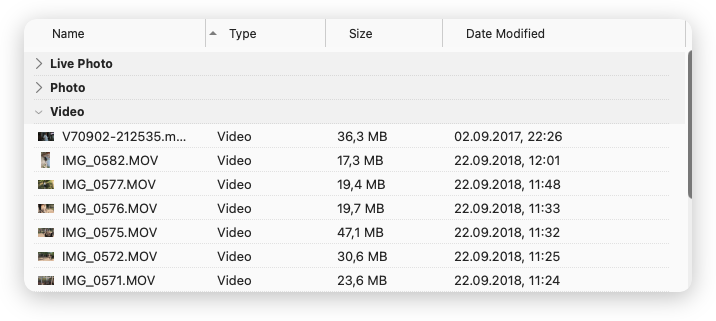
The Kind column carries it into sorting and grouping too, so Group by ▸ Type turns a mixed album into sections and you can see at a glance how much of it is Live Photos.
A drag carries one file — the main one. To get the other half, right-click the picture and choose Save Live Photo Video… or Save RAW File…, then pick a folder. It is offered only when every selected picture has the same kind of second file.
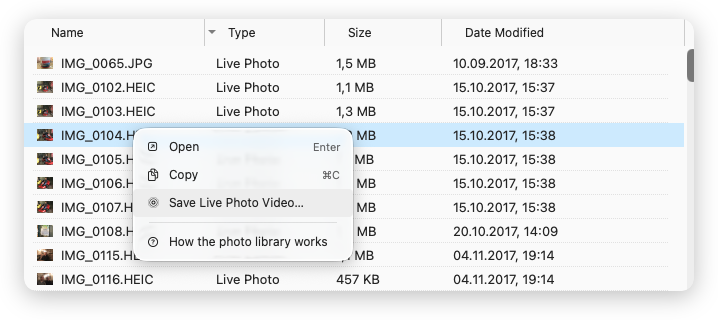
The menu is short because the library is read-only: there is nothing here to rename, move or delete. The last row opens this page.
Looking before you copy
The preview panel (⇧⌘P) shows the picture itself, with its dimensions and size underneath. Video plays right there, with play and a scrubber — the same player the app uses for video files on disk, so it behaves the same either way. Widen the pane and the scrubber appears; narrow it and it steps back to the play button and the elapsed time.
Read-only, on purpose
Nothing in the library can be renamed, moved or deleted from here, and the menus do not pretend otherwise. That is not a limitation we plan to lift: an album is a membership, not a directory — a picture can be in five of them at once — and a photo has no filename of its own to rename. The one action that matters is getting a copy out, and that one is complete.
Related
- Import from iPhone or iPad — a photo or scan taken now, straight into the folder you are looking at.
- Preview panel — what the panel shows for every other kind of file.
- Image tools — converting, rotating and stripping metadata once the picture is out.
Frequently asked questions
Where are my photos actually stored on a Mac?
Inside a single package — Photos Library.photoslibrary in your Pictures folder — which is a library rather than a set of folders. Opening it by hand is a bad idea: the file names inside are not yours, the structure belongs to Photos, and editing anything there can damage the database. ComfortFiles reads it the supported way, through the same public interface Photos itself publishes, and shows it to you as folders and files.
How do I export a photo from Photos to an ordinary folder?
Open iPhotos in the sidebar, find the picture, and drag it into any folder — in ComfortFiles or in Finder. What lands there is the original file the camera wrote, not a re-encoded copy. Copy and paste works too, and so does opening a picture, which writes it out and hands it to your usual app.
Does ComfortFiles change anything in my photo library?
No. The library is read-only here by design: an album is a membership rather than a folder, so there is nowhere inside it to move a file to, and a picture has no filename of its own to rename. Nothing is written, moved or deleted — the app only reads and copies out.
What happens with Live Photos and RAW+JPEG pairs?
Those are two files in one picture, and the listing says so — the Kind column reads Live Photo or RAW + JPEG. A drag carries the main file, the one everybody means when they point at the picture. The other half is saved on purpose: right-click and choose Save Live Photo Video… or Save RAW File….
Why does ComfortFiles ask for permission to my photos?
macOS guards the library, and the request appears the first time you click iPhotos — never at launch, for a feature you have not touched. If you refused earlier, macOS will not ask again: turn ComfortFiles on in System Settings ▸ Privacy & Security ▸ Photos.
What about photos that are only in iCloud?
They are fetched when you ask for one. Opening or dragging such a picture downloads it first, with a progress bar in the file-operations window; if there is no connection, you are told that rather than handed an empty file.