How to Print Photos, PDFs and Text Files in ComfortFiles
Updated September 24, 2026
Select what you want on paper and press ⌘P. The whole selection goes into one print dialog — no opening each file in Preview first, no printing them one at a time.
Three ways to print
- Keyboard: select the files and press ⌘P, or use File ▸ Print… in the menu bar.
- Right-click: Print… sits just below Open with.
- Preview panel: with one file selected, Print is among the buttons, right after Open — handy when you have just looked at the picture and decided it is the one.
What prints, and how it comes out
| What you select | How it prints |
|---|---|
| Photos and pictures | One page each, in its own shape — or several to a sheet. A landscape photo turns to fit the paper. A picture smaller than the page prints at its own size rather than being blown up to the margins — a passport photo stays passport-sized |
| PDFs | Every page, as it is |
| Text files and code | In an even-width font, so columns and indentation line up the way they do on screen |
| Markdown | As the formatted document, not its markup |
| RTF | With its own fonts and styles |
Several files make one job, in the order the list shows them. Sort the folder first and the paper comes out in that order.
Text files written on Windows print correctly too: a .txt in Cyrillic, Western European or Chinese encoding is recognised rather than printed as gibberish. Text is always black on white, even when your Mac is in dark mode.
Several photos on one sheet
When every file you selected is a picture, the print dialog has a Photos section of its own:
| Photos per sheet | What you get |
|---|---|
| One per sheet | The usual: each photo on its own page |
| 2, 4 or 9 per sheet | The sheet divided into equal spaces, one photo in each |
| Contact sheet | 35 small pictures with their file names — for choosing which ones to print large |
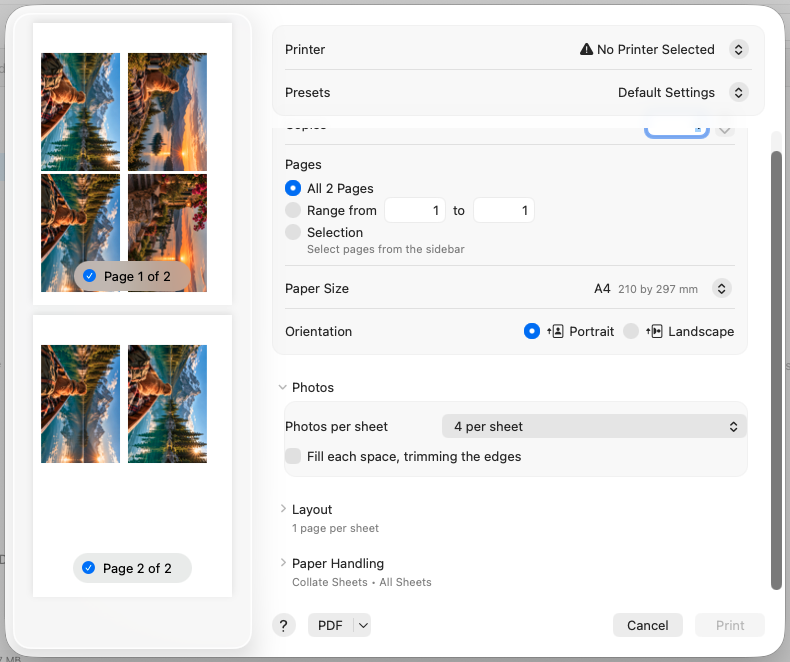
Each photo is turned to suit its space, so a landscape shot is not printed small in an upright space, and the photos run left to right, top to bottom, in the order the list shows them. There is a thin gap between spaces to cut along.
Fill each space, trimming the edges enlarges every photo until it covers its space, the way a print shop crops to a paper size; leave it off and each photo is shown whole. The dialog’s preview redraws as you change either, and the paper size and orientation you pick there are used for the layout too.
What does not print from here
Word documents, spreadsheets, slide decks and web pages belong to the app that made them — it knows the page layout, and ComfortFiles would only be guessing. Open the file (double-click, or Open with) and print from there.
Print is not offered at all when the selection mixes the two — nine photos and one spreadsheet — rather than printing the nine and saying nothing about the tenth. Very large text files (over 2 MB) are left to a text editor for the same reason: laying out hundreds of pages would hold the window up.
Good to know
- Everything happens on your Mac, in the standard macOS print dialog: your printer, copies, page range, paper size. Nothing is uploaded.
- The dialog’s PDF ▸ Save as PDF turns the whole selection into a single PDF — a quick way to combine several scans or photos into one file.
- To join existing PDFs rather than print them, use PDF tools ▸ Merge.
Frequently asked questions
Can I print several photos at once on a Mac?
Yes. Select them all in the file list and press ⌘P, or right-click and choose Print…. They go to the printer as one job, through one print dialog, in the order the list shows them — you do not open each picture in Preview and print it on its own.
How do I print several photos on one page on a Mac?
Select the photos and press ⌘P. The print dialog has a Photos section: choose 2, 4 or 9 per sheet, or a contact sheet of 35 small pictures with their file names. Each photo is turned to suit its space and they run in reading order; the preview in the dialog shows the result before anything is printed.
Which files can ComfortFiles print?
Photos and pictures, PDFs, and text: plain text files, source code, Markdown and RTF. Anything else — a Word document, a spreadsheet, a slide deck — is printed from the app that made it, which knows its layout better than any file manager.
Why is Print missing from the menu?
Because the selection holds something ComfortFiles does not print itself, such as a Word or Excel file. Print is offered only when every selected file can be printed: nine photos and one spreadsheet is not one print job, and printing the nine while quietly skipping the tenth would be worse than not offering it.
Does a Markdown file print as formatted text or as markup?
As formatted text — headings, lists and links laid out the way the Markdown preview shows them, not the asterisks and hash signs of the source.
Will a text file print as white text if my Mac is in dark mode?
No. Printing always uses black text on white paper, whatever the Mac is set to.
Can I save the selection as one PDF instead of printing it?
Yes — the print dialog has a PDF menu in its lower-left corner, and Save as PDF there writes the whole print job, every photo and page in it, into a single PDF file.