How to Use the Trash in ComfortFiles
Updated October 1, 2026
The Trash lives in the ComfortFiles sidebar under Quick Access. Click it to see what’s inside, right-click it to empty it. It shows everything macOS considers trashed — including files deleted from external drives, which keep their own per-volume trash folders.
Deleting
Select files and press ⌘⌫, or right-click → delete. Files go to the Trash — ComfortFiles never permanently deletes on a single keystroke.
Restoring
Deleted the wrong thing? Press ⌘Z — undo restores the files from the Trash to exactly where they came from.
Emptying
Right-click the Trash in the sidebar and choose Empty Trash… — one confirmation, which says how much space it will free, then it’s done. The Trash icon reflects the state: papers in the basket when there’s something inside, empty basket when there isn’t.
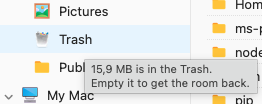
Hover over the Trash in the sidebar to see how much room what is in it takes — everything in the Trash, including what was deleted from external drives. Emptying it is what gives that room back.
To see the Trash next to everything else taking room on your Mac — apps and what they keep, caches, old installers, System Data — open Storage.
The sound
Moving something to the Trash and emptying it both play the sound macOS itself uses — the one Finder plays, not one of our own. It sounds once per action, so deleting forty files sounds like one delete rather than forty.
Turn it off in Settings ▸ General ▸ Sound when deleting. It also follows your Mac: if you have switched off Play user interface sound effects in System Settings ▸ Sound, ComfortFiles stays quiet whatever its own setting says.
Good to know
- External drives included. macOS keeps a separate trash on every volume; ComfortFiles shows them all in one place, so a file deleted from a USB drive is visible too.
- Changes from outside are picked up. Empty the Trash from Finder (or delete files there), and the ComfortFiles view updates on its own.