How to Change the View and Icon Size in ComfortFiles
Updated October 15, 2026
ComfortFiles has two views — a detailed list and an icon grid — and the icons scale between them by keyboard, wheel, trackpad or slider. Every tab remembers its own, and the choice survives a quit.
Switching between list and icons
The two buttons at the right of the command bar — the row of commands under the address bar — switch modes. So does right-clicking an empty area of the file list and choosing View:
| Command | What it does |
|---|---|
| Large icons | Icon grid at 96 |
| Medium icons | Icon grid at 64 |
| Small icons | Icon grid at 48 |
| Details | The list, with sortable columns |
| Show item info | A count under each folder and the pixel size under each picture — see below |
The three named sizes are exactly the sizes the slider and the zoom keys land on, so the two ways of setting a size cannot leave you with two different answers.
Making the icons bigger or smaller
Four routes, all changing the same value:
| ⌘+ / ⌘− | Step up or down |
| ⌘0 | Back to the default size |
| ⌘ + scroll | Over the icon grid |
| Pinch | On a trackpad |
| The slider | Left end of the status bar |
If you came from Windows, ⌘ + scroll is the one you already know — Explorer’s Ctrl + wheel with the usual Mac swap of Ctrl for ⌘. macOS keeps ⌃ + scroll for its own screen zoom, so nothing collides.
The range is 48 to 128 points. The keys and the wheel step through six sizes rather than creeping, so a couple of presses crosses the whole range; the slider is there when you want a size between two of them.
⌘0 is View ▸ Actual Size, and it puts the icons back to the size a fresh tab opens at. The three together are the convention browsers use — ⌘+, ⌘−, ⌘0 — which is where the hand reaches for it.
In the list view the zoom commands are greyed out, and the slider is hidden. There is nothing to scale — list rows are a fixed height. Explorer answers “zoom out past the smallest icons” by changing view mode; we do not, because a keystroke that silently switches your view is a surprise, not a habit. Switch modes explicitly and the zoom comes back.
Seeing what’s inside without opening it
Turn on Show Item Info and the icon view adds a second line under each name:
| Under | It says |
|---|---|
| A folder | How many items it holds — “12 items”, or “0 items” when it is empty |
| A picture | Its size in pixels — “4032 × 3024” |
| A disk | Its free space, as it always does |
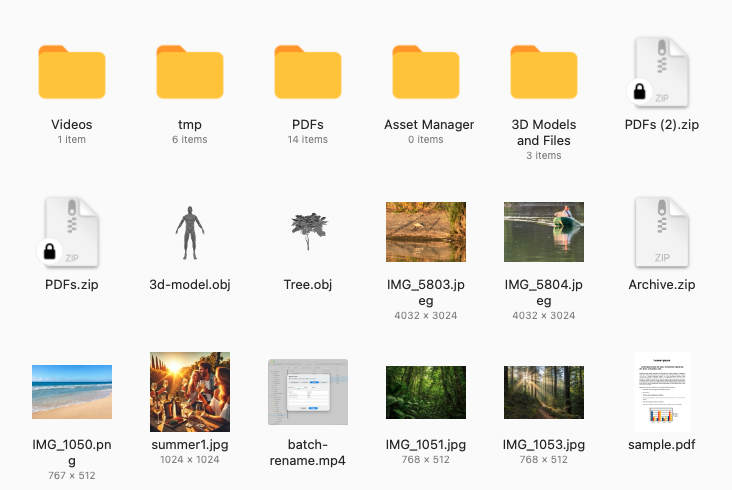
Three ways to switch it: ⌘J, View ▸ Show Item Info, or the switch in Settings ▸ View. It stays off until you turn it on, as in Finder, and one switch covers every window and tab. In the list it is greyed out: Details already has a column for each of these.
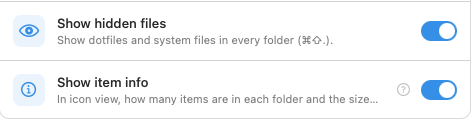
The count is what you would see by opening the folder. It counts what sits directly inside, not the contents of folders within it, and it follows Show hidden files — hidden files are counted only while they are shown.
Some folders show nothing, and that is deliberate. A folder ComfortFiles is not allowed to read gets no line rather than a “0” that would be untrue; Full Disk Access fixes most of those. Folders on a network drive are not counted, because counting a whole screen of them over the network would make every folder slow to open. At the smallest icon size the line is hidden, because it would not fit.
A glimpse of each folder’s first file
In icon view each folder shows its first file standing inside it, the way Windows Explorer does — a photo as a picture, a video by a frame, a document as its first page or its icon. It is on from the start; Show folder previews in Settings ▸ View turns it off for every window and tab, if you prefer plain folders.
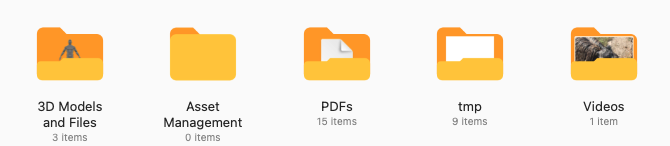
Which file it shows is decided, not random. It is the first file in the order the folder is sorted by: sort by date with the newest first, and every folder shows its newest file. Folders inside it are passed over, and it follows Show hidden files the same way the count does.
Some folders stay plain, on purpose:
| Stays plain | Why |
|---|---|
| A folder with nothing in it, or only other folders | There is no file to show |
| A folder you gave its own icon in Finder | Your choice stays |
| Desktop, Documents, Downloads and the others | They keep their own icons, so you can find them at a glance |
| A folder on a network drive | Reading a whole screen of folders over the network would make every folder slow to open |
| Anything in the list view | A list icon is too small for a picture inside a picture |
Icons that show what is in the file
Pictures, documents and videos show what is in them — a photo as itself, a PDF by its first page, a video by a frame — in the list, the grid and the sidebar. When a folder’s pictures cost more than they show, switch off Show previews in icons in Settings ▸ View: every file then shows its type icon, and folder previews go with it. It is Finder’s Show icon preview and File Explorer’s Always show icons, never thumbnails.
Large 3D models show their type icon either way. To draw a picture of a model, macOS reads the whole file into memory, so a folder of big scans could stall the Mac just by being opened. Models up to 15 MB get their picture; a larger one is drawn in the preview panel when you ask for it.
What gets remembered
Each tab keeps its own. A tab on your photos can sit in large icons while the one on your downloads stays in the list, and switching between them does not disturb either.
It survives quitting. View mode, icon size, column layout, sidebar width and the preview panel all come back as you left them — including if you have told the app to open on a fixed folder, which resets where you are but not how it looks.
A folder can keep a view of its own. Click the folder button at the left of the view buttons and that folder always opens in the mode, size, sort, grouping and columns you gave it, while other folders go on showing the tab’s view — see Give a folder a view of its own.
Changing the size in a folder sets the default for other folders. There is one exception: the My Mac screen opens a little larger, because each disk there carries a usage bar that needs the room. Resizing while you are on that screen is temporary and does not overwrite your usual size.
Related
- Every keyboard shortcut, including the Explorer equivalents.
- Show hidden files — which files a folder shows, and so what its count includes.
- Sorting, grouping and columns — the other half of how a folder looks.
Frequently asked questions
Can folders show a preview of what is inside, like in Windows Explorer?
Yes, and it is on from the start: in icon view each folder shows its first file standing inside it — a photo as a picture, a document as its page or icon. It is the first file in the order the folder is sorted by, so with the newest first each folder shows its newest file. To go back to plain folders, switch off Show folder previews in Settings ▸ View.
How do I turn off thumbnails in ComfortFiles?
Switch off Show previews in icons in Settings ▸ View. Every file then shows its type icon instead of a picture of what is in it, and folders stop showing their first file. It is the same switch as Finder’s Show icon preview and File Explorer’s Always show icons, never thumbnails.
How do I see how many items are in a folder without opening it?
Turn on Show Item Info: press ⌘J, choose View ▸ Show Item Info, or switch it on in Settings ▸ View. In icon view every folder then shows a count under its name, such as “12 items”, and every picture shows its size in pixels. An empty folder says “0 items”, which is the quickest way to see which folders you have finished with.
Why does a folder show no count under it?
On purpose, in three cases. ComfortFiles is not allowed to read that folder, and a “0” would be wrong, so it shows nothing; Full Disk Access fixes most of these. The folder is on a network drive, where counting a screenful of folders would make browsing slow. Or the icons are at the smallest size, where the line does not fit. Disks show their free space instead, whether the setting is on or off.
How do I reset the icon size back to normal?
Press ⌘0, or choose View ▸ Actual Size. It puts the icons back to the size a new tab opens at. The three keys together are the browser convention — ⌘+ to zoom in, ⌘− to zoom out, ⌘0 to reset — and the item greys out when you are already at the default.
How do I make the icons bigger in ComfortFiles?
Four ways, all doing the same thing: press ⌘+ and ⌘−, hold ⌘ and scroll over the file list, pinch on a trackpad, or drag the small slider at the left of the status bar. The range is 48 to 128 points, and the keys and the wheel step through six sizes across it.
Does ComfortFiles have Ctrl + scroll to zoom like File Explorer?
Yes, with ⌘ in place of Ctrl — the standard swap on a Mac. Hold ⌘ and scroll over the icon grid. macOS reserves ⌃ + scroll for its own screen zoom, so the two do not collide.
Why does ⌘+ do nothing in the list view?
Because there is nothing to scale there: list rows are a fixed height, and the slider hides in that mode for the same reason. Explorer switches view modes when you keep zooming out, but a key that silently changed your view would be a surprise rather than a habit — so in the list the zoom commands are simply greyed out. Switch to icons first.
Does ComfortFiles remember the icon size?
Yes, twice over. Each tab keeps its own view mode and icon size, and all of it is saved when you quit and restored next time you open the app. Changing the size in a normal folder also sets the size new folders open at.
How do I switch between list and icon view?
The two buttons at the right of the command bar — the row of commands under the address bar — or right-click an empty area of the file list and choose View — Large icons, Medium icons, Small icons or Details. Those three sizes are 96, 64 and 48, the same values the slider and the zoom keys land on.
Why are the icons bigger on the My Mac screen?
My Mac shows your disks with a usage bar under each one, and that bar needs room to be legible — so that screen opens at a slightly larger size regardless of your usual one. Resizing while you are there does not overwrite your normal setting; it goes back to what you had as soon as you open a folder.